


Handle needs and move the clock forward
Use these actions when you want to get past a round of needs management or move to a later time. Clear needs targets the character you have selected, while Skip Time advances the game's clock by the number of hours you choose.
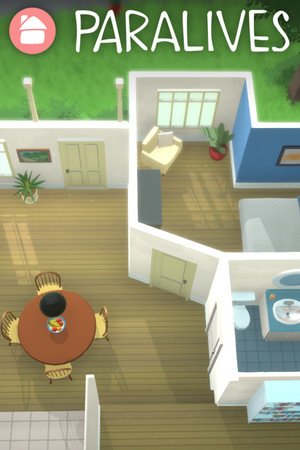
Check the target before using an action
Select the intended Parafolk before using Clear needs. Its separate Clear all needs control has a wider scope, so use it only when you want to relieve needs across characters.
Set hours before skipping
Skip Time uses an Hours setting; 24 hours is one day. Choose the amount before triggering the action. Advancing the clock does not promise that tasks, relationships or other activities will complete.
Available game actions
Clear needsFree
Relieve the currently selected character's needs so you can return to the activities you want to focus on.
Select the intended character, then use Clear needs. The separate Clear all needs control applies needs relief more widely across characters.
Before you use it: The main action targets your selection. Use the all-character control deliberately when you want its broader effect.
Skip TimeFree
Advance the game clock by a chosen number of hours to move to a later time.
Set Hours before using Skip Time. The default is 24 hours, equal to one day.
Before you use it: This changes the clock; it does not guarantee that activities or progression will finish during the skipped time.
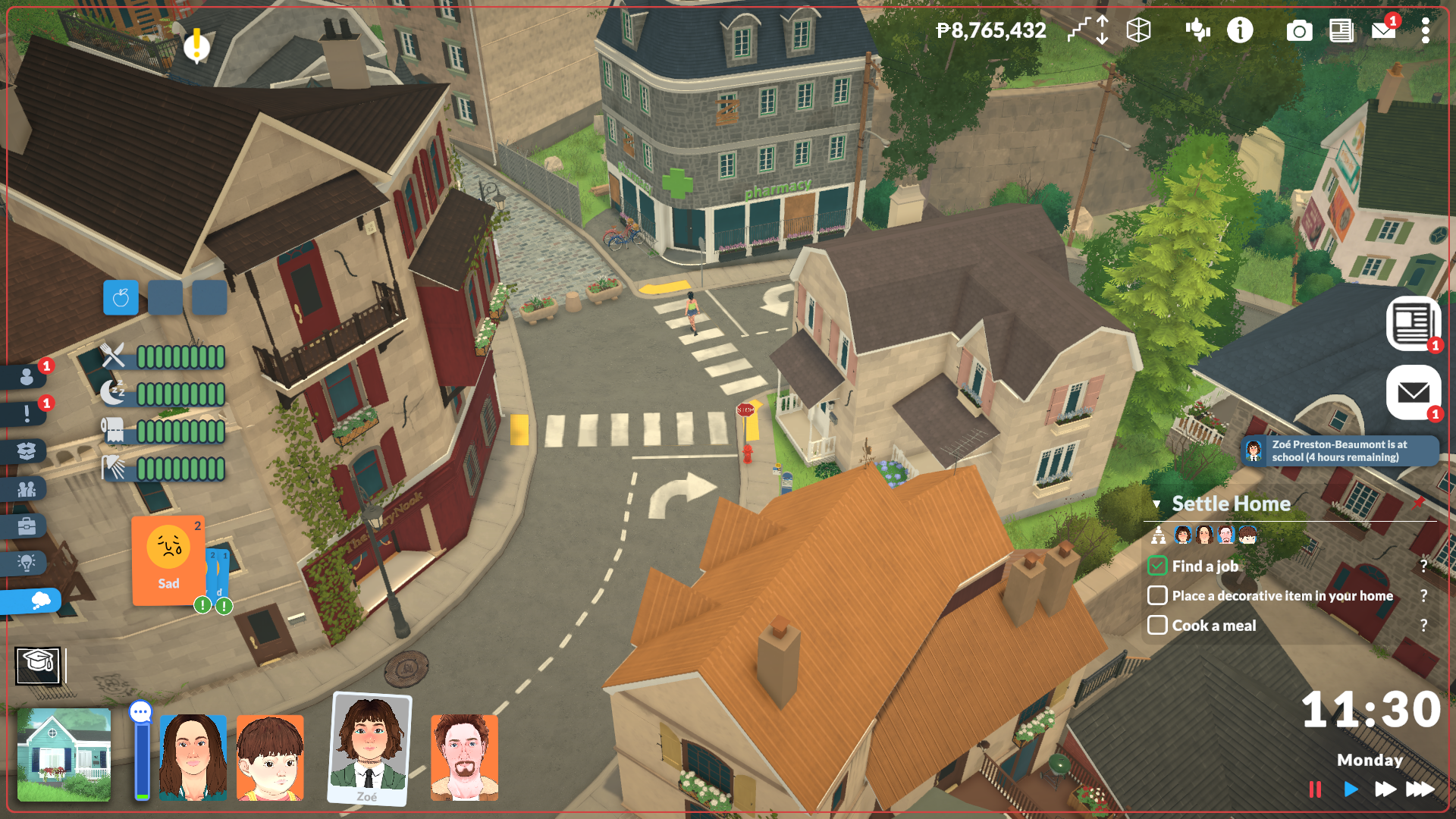
Skip ahead by an hour
Move the in-game clock forward with Skip Time. The clock now shows 11:30.
More ways to customise Paralives
- Paralives resources
Adjust the current household's Paradimes balance up or down.
- Paralives progression systems
Prepare the selected character's next personality level-up.
Using these features
Choose the feature in the Windows app after connecting your game. Check its requirements before making a change.
Setup for Paralives →