

Customise
2 optionsControl the Item Store balance and equip any of the five UI themes.
View customisation options →Unlock all five themes for your Study Zone tools or choose how many points to take to the Item Store. Pick colors for the study desk where you use the Pomodoro timer, task list and lofi player.
Requires the Windows app and the Bytonian Mods browser extension for Chrome or Edge. Browser setup guide

Start with free mods
Download Bytonian Mods for Windows and try these free features. Choose one to see how it works and any requirements.
Set the points balance used for Item Store theme purchases.
Choose a whole-number balance, apply it, then enter Study Zone and open the bag icon. Buy a theme and choose Equip.
Unlock Classic Blue, Lofi Purple, Forest Green, Sakura Pink and Midnight for normal Item Store equip.
Apply the unlock, enter Study Zone and open the bag icon. Choose Equip on a theme to recolor the tool windows without a points purchase.
Choose a points balance, open the Item Store and purchase a color you like. Forest Green costs 250 points; equipping it turns the tool windows and buttons green. Your XP and study records stay separate from the points control.
Unlock Classic Blue, Lofi Purple, Forest Green, Sakura Pink and Midnight. Open the Item Store and choose Equip to switch colors without spending points.
Control the Item Store balance and equip any of the five UI themes.
View customisation options →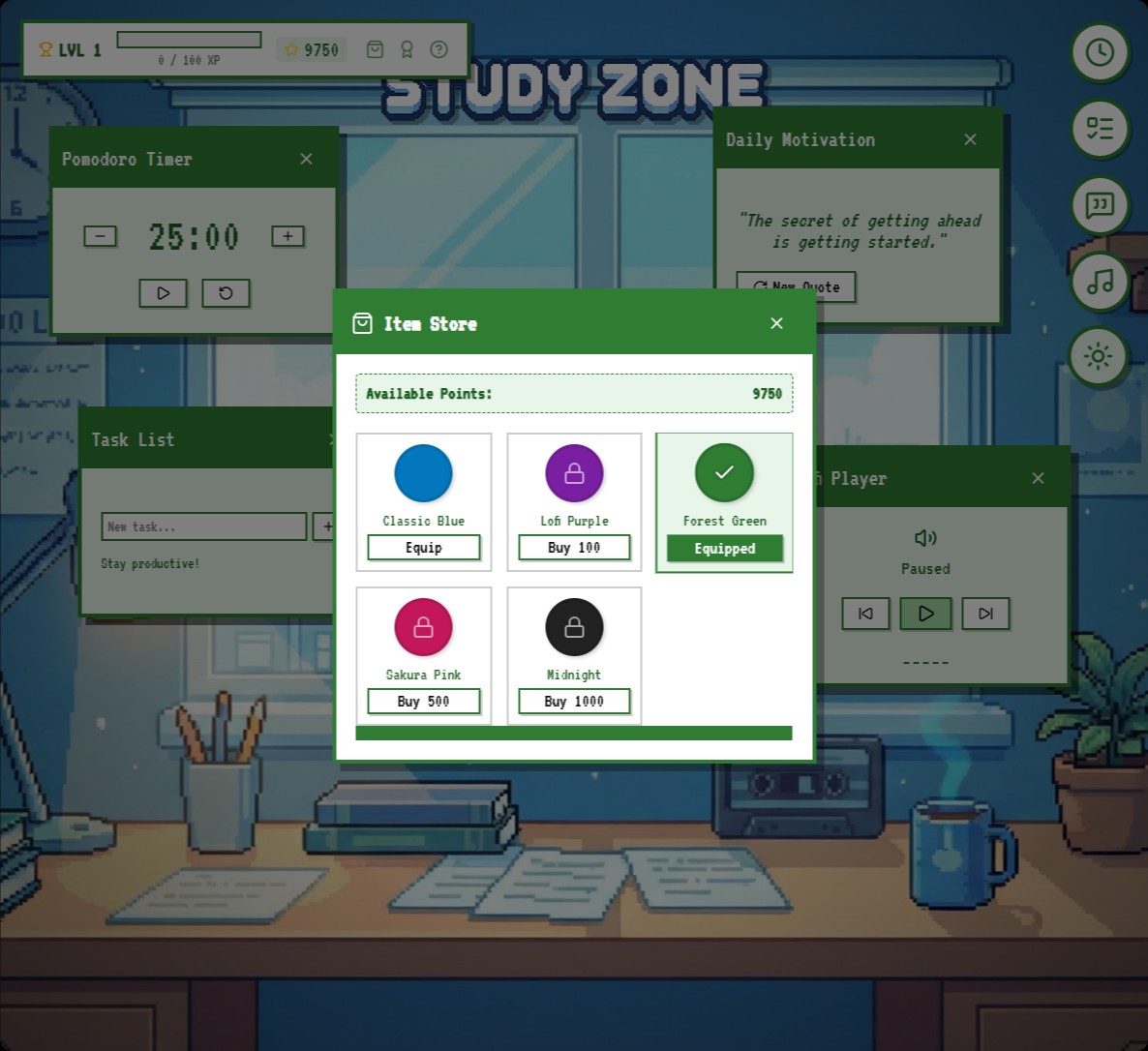
Make your study space green
Spend points in the Item Store and equip Forest Green to recolor your study tools.
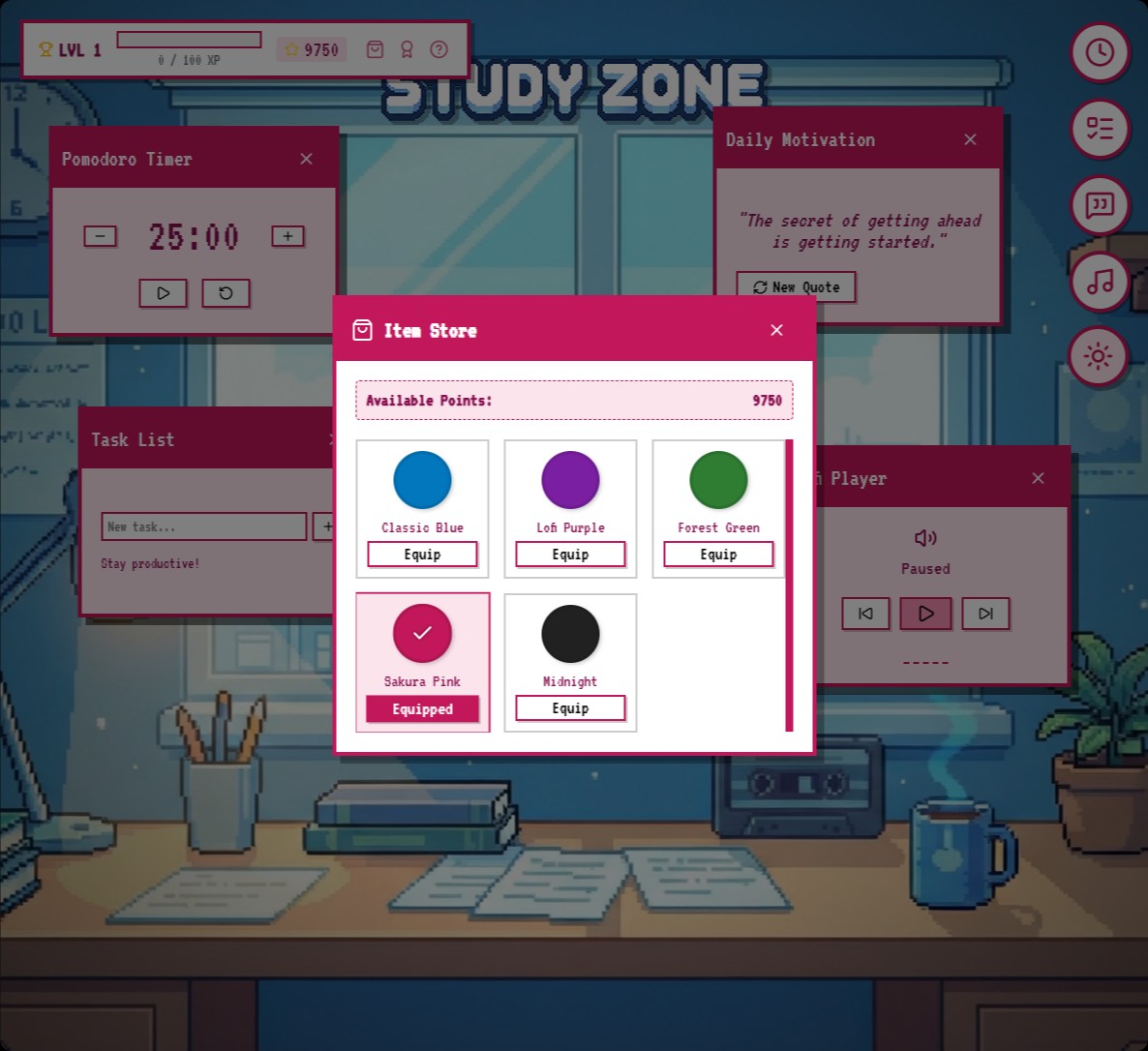
Choose your study colors
Equip Sakura Pink for a bright new look across your study tools. All five UI themes are available in the Item Store.
Download the Windows app and follow the setup prompts.
Set up the browser extension in Chrome or Edge, then open the supported YouTube Playable. Follow the connection guide if the game is already running.
Open Customise in Bytonian Mods, choose an option and follow its instructions. Check the available values and any limits before making your change.