

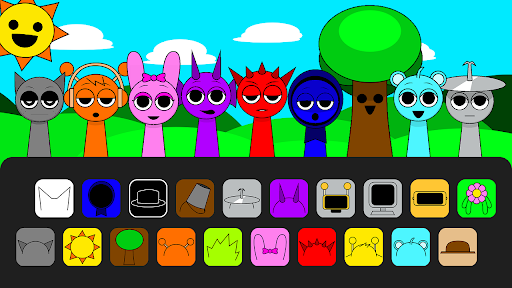
Sound and Mixer Controls
Use these actions on the arrangement you are currently building. Select a performer with a sound before changing its pitch, volume, solo or mute state. Clear Mix works on the whole current lineup.

Pitch and volume percentages
Sound Pitch accepts 50–200%; 100% is normal pitch and playback rate. Pitch and rate change together, so choose a percentage that suits the sound.
Sound Volume accepts 0–100%; 0 is silent and 100 is full volume. The game can replace the setting when the selected sound changes.
Focus, mute, and clear
Focus on one selected part with Solo Performer, or silence that part with Mute Performer. Choose the performer you want to change first.
Clear Mix removes the currently assigned sounds and returns their icons to the available palette. It is the free option in this group; pitch, volume, solo and mute are premium controls.
Available game actions
Clear MixFree
Clear the sounds assigned to the current arrangement.
Use Clear Mix when you want an empty lineup to start another combination.
Before you use it: This clears the current arrangement. It does not restore a saved mix or reset account progress.
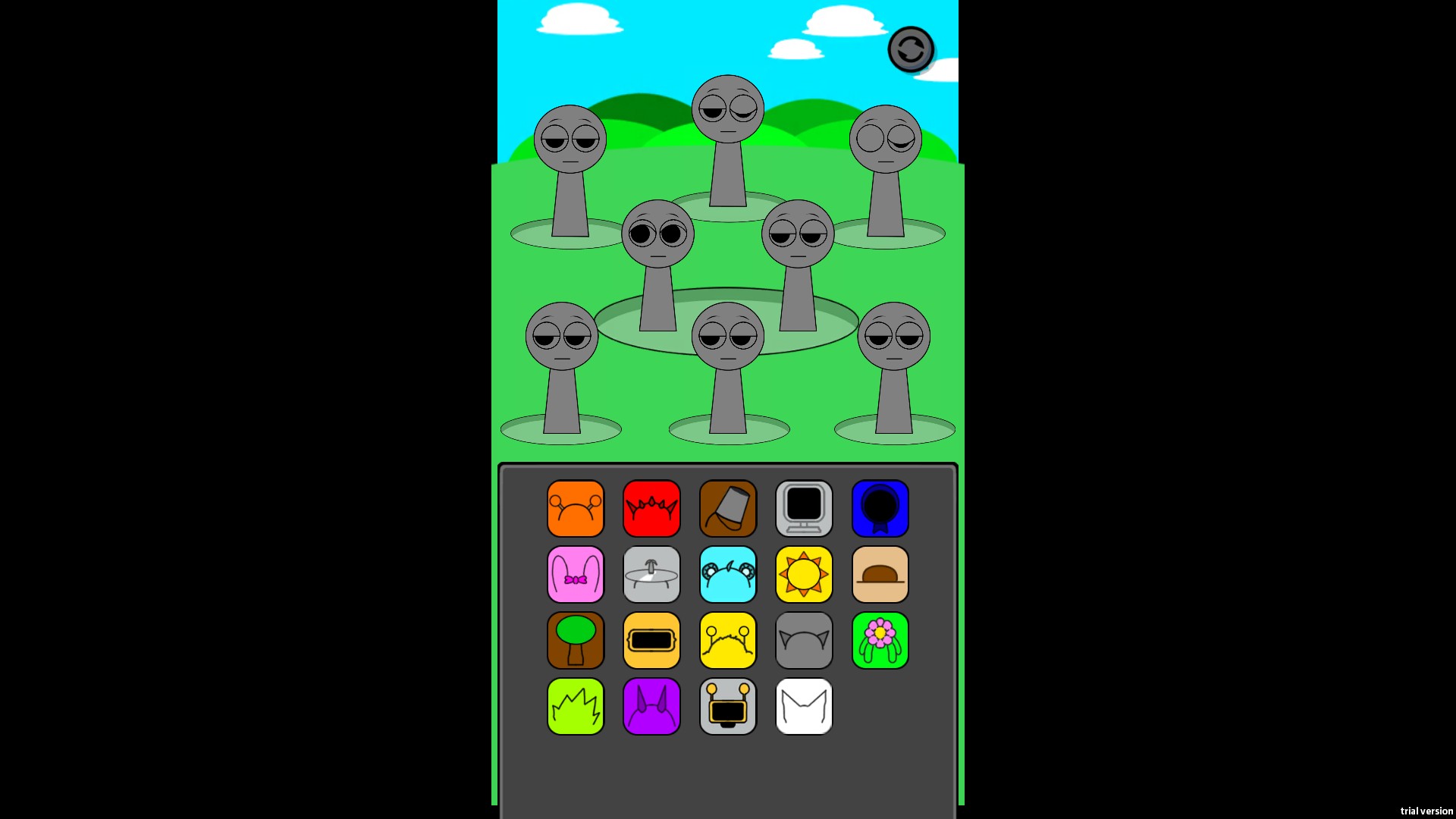
Start a new arrangement
Clear Mix removes the assigned sounds from the current lineup. The default gray performers and available orange and red sound icons return, ready for a new combination.
Mute PerformerPremium
Use the game's mute control for the selected performer.
Select a performer that has a sound, then use Mute Performer.
Before you use it: Choose a performer in your current lineup before using the action.
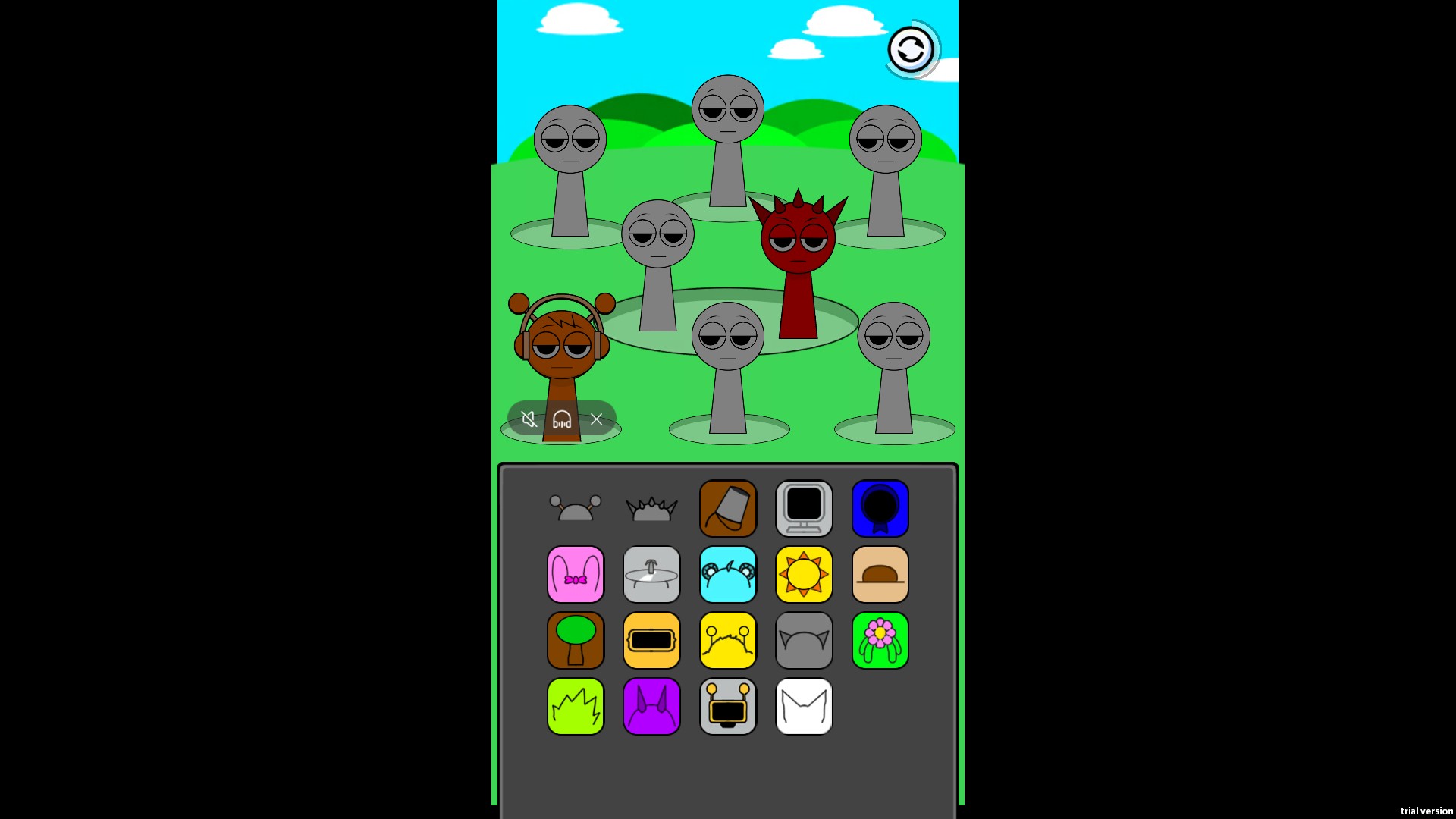
Mute the selected performer
The selected orange performer is dimmed after the mute control, with its normal selection buttons still available.
Solo PerformerPremium
Focus on the selected performer using the game's solo/listen control.
Select a performer that has a sound, then use Solo Performer.
Before you use it: Choose a performer in your current lineup before using the action.
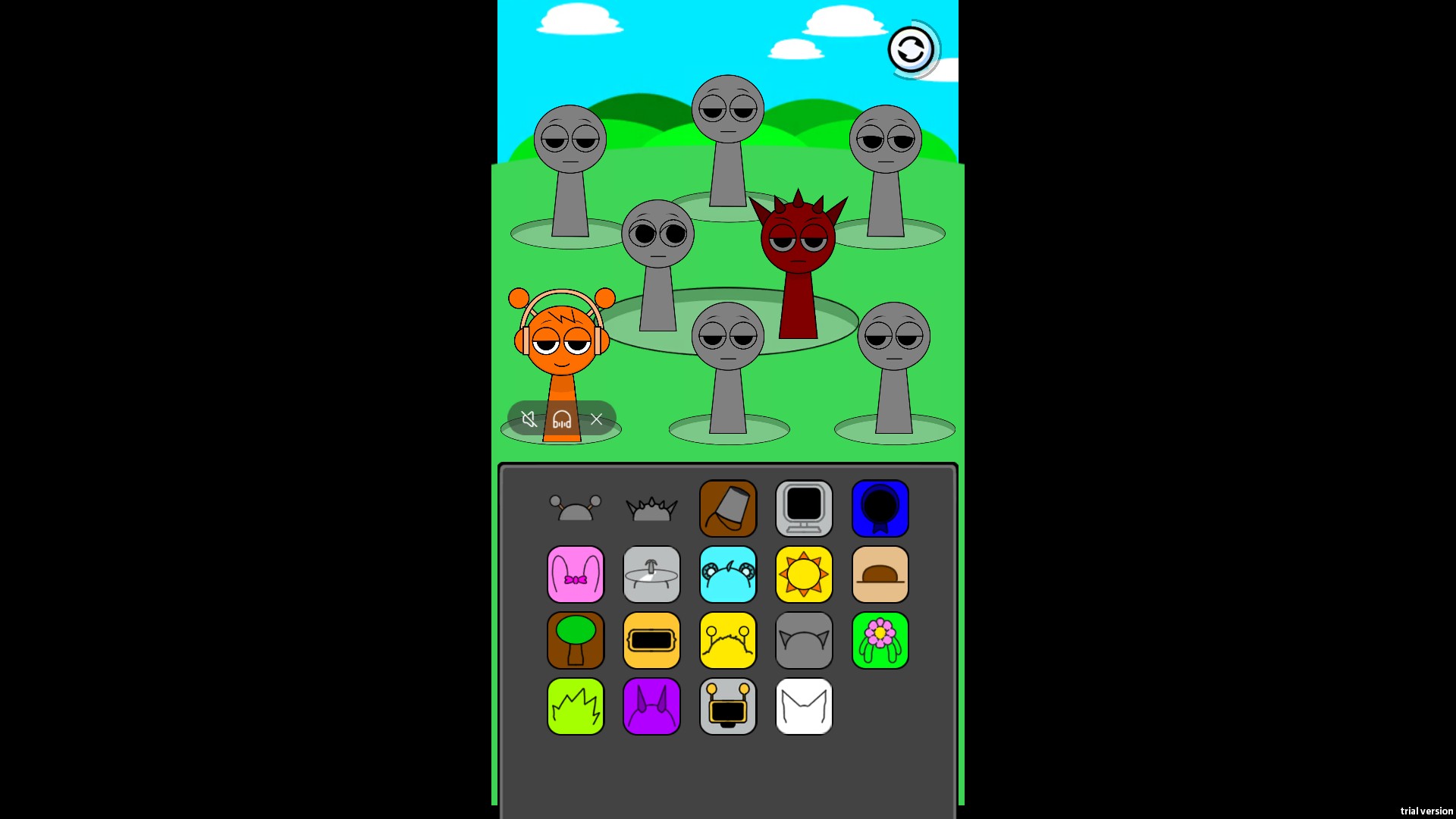
Focus on a selected performer
The selected orange performer stays bright while the red performer is dimmed after the solo control. This image illustrates the current arrangement's solo state.
Sound PitchPremium
Set the selected sound's pitch and playback rate with a percentage.
Choose 50–200%, then apply to a selected performer with a sound.
Before you use it: Pitch and playback rate change together. A new sound or music set may reset the value.
Sound VolumePremium
Set the selected sound's volume with a percentage.
Choose 0–100%, then apply to a selected performer with a sound.
Before you use it: This is the selected sound's volume, not master volume. Changing the sound or music set may reset it.
Questions about game actions
- Which performer will Solo and Mute affect?
- They affect the performer you have selected in your current lineup.
Using these features
Choose the feature in the Windows app after connecting your game. Check its requirements before making a change.
Setup for Sprunki Beat: Full Mod Music! →