

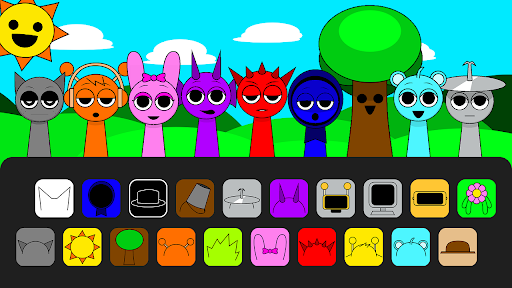
Game Actions
5 optionsSelected-sound adjustments and native mixer actions for the current arrangement.
View all game actions →Build a lineup by dragging sound icons onto the gray performers, then experiment with how the parts fit together. These controls let you adjust a selected sound's pitch or volume, focus on one performer, mute a part, or clear the current arrangement.

Add sounds using the game's palette and select a performer before adjusting it. Sound Pitch changes pitch and playback rate together; Sound Volume adjusts that performer's sound rather than the game's master volume.
Solo Performer uses the game's listen control to focus on your selection. Mute Performer uses its mute control, so you can change the arrangement without removing the sound from its slot.
Clear Mix is free and removes the sounds assigned to the current lineup. It gives you an empty arrangement to build from again.
Sound changes may reset when you replace a sound, change the music set or leave the session. Choose a performer before using Solo or Mute.
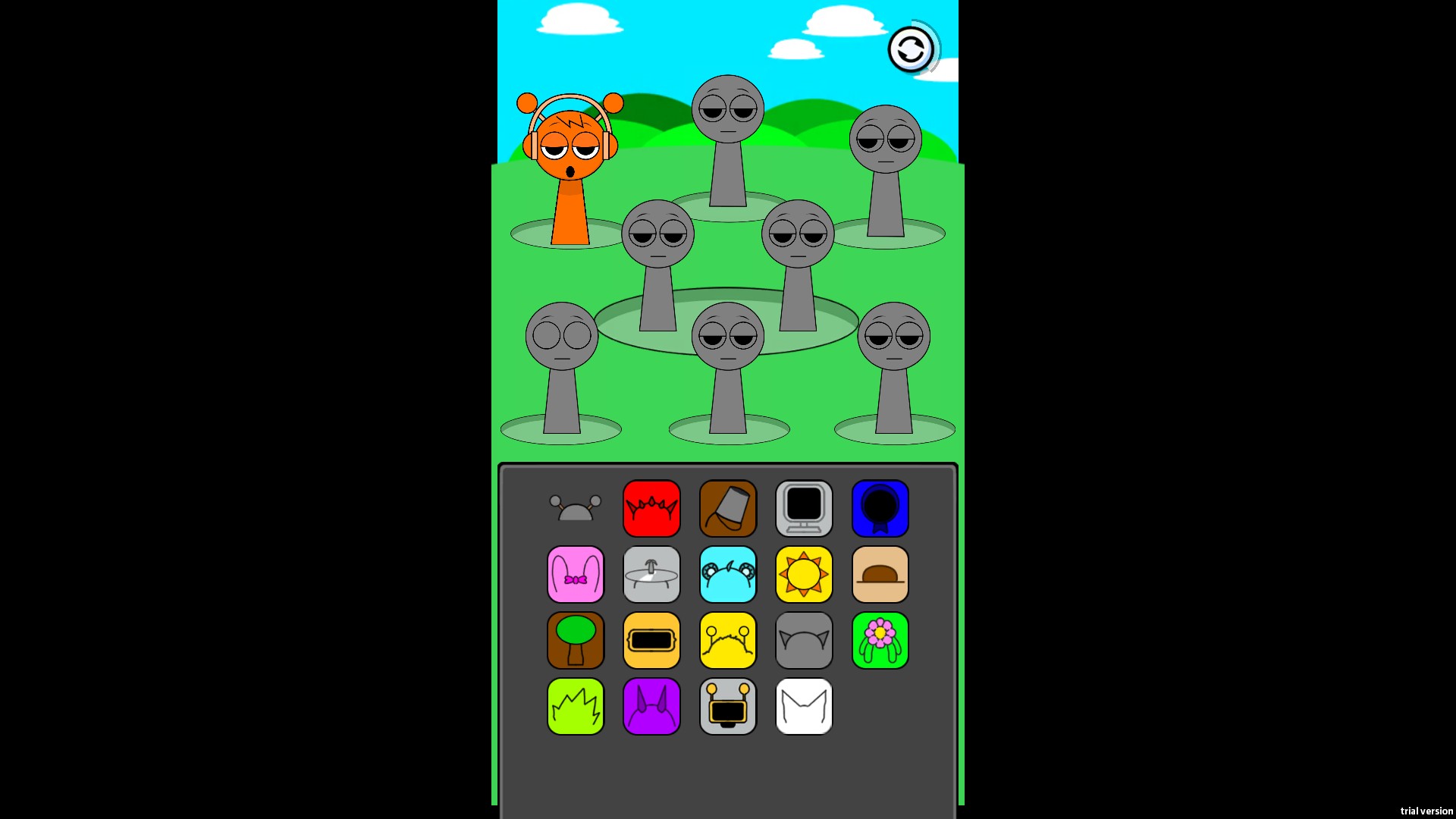
Build a musical lineup
An orange performer joins the lineup after a sound icon is dragged onto an empty slot. Explore the palette to combine different characters in Sprunki Beat: Full Mod Music!.
Selected-sound adjustments and native mixer actions for the current arrangement.
View all game actions →Download the Windows app and follow the setup prompts.
Set up the browser extension in Chrome or Edge, then open the supported YouTube Playable. Follow the connection guide if the game is already running.
Review the available options in the app and choose the ones that suit how you play.