


More time and more choice for each puzzle
Give yourself another minute to sort the clutter, hold the clock while you plan your next move, or open a different puzzle when you're ready.

Add time when you need it
Move an item to start the countdown, choose from 1 to 600 extra seconds and press Extra time. You can keep working on the same puzzle with the extra time on the clock.
Pause the clock and keep playing
Turn Pause timer on during a puzzle with a countdown. Items stay available to move while the clock holds. Switch it off to resume the countdown; turn it off and on again when you want to pause a new puzzle.
Finish or pick another puzzle
Use Finish puzzle while playing to reach the normal results screen and its continuation buttons. For a different activity, enter a puzzle number from 1 to 86 and press Choose puzzle. Selecting a puzzle starts that activity.
Available game actions
Choose puzzlePremium
Choose the puzzle you want to play.
Enter a puzzle number from 1 to 86, then press Choose puzzle. Selecting a puzzle starts that activity.
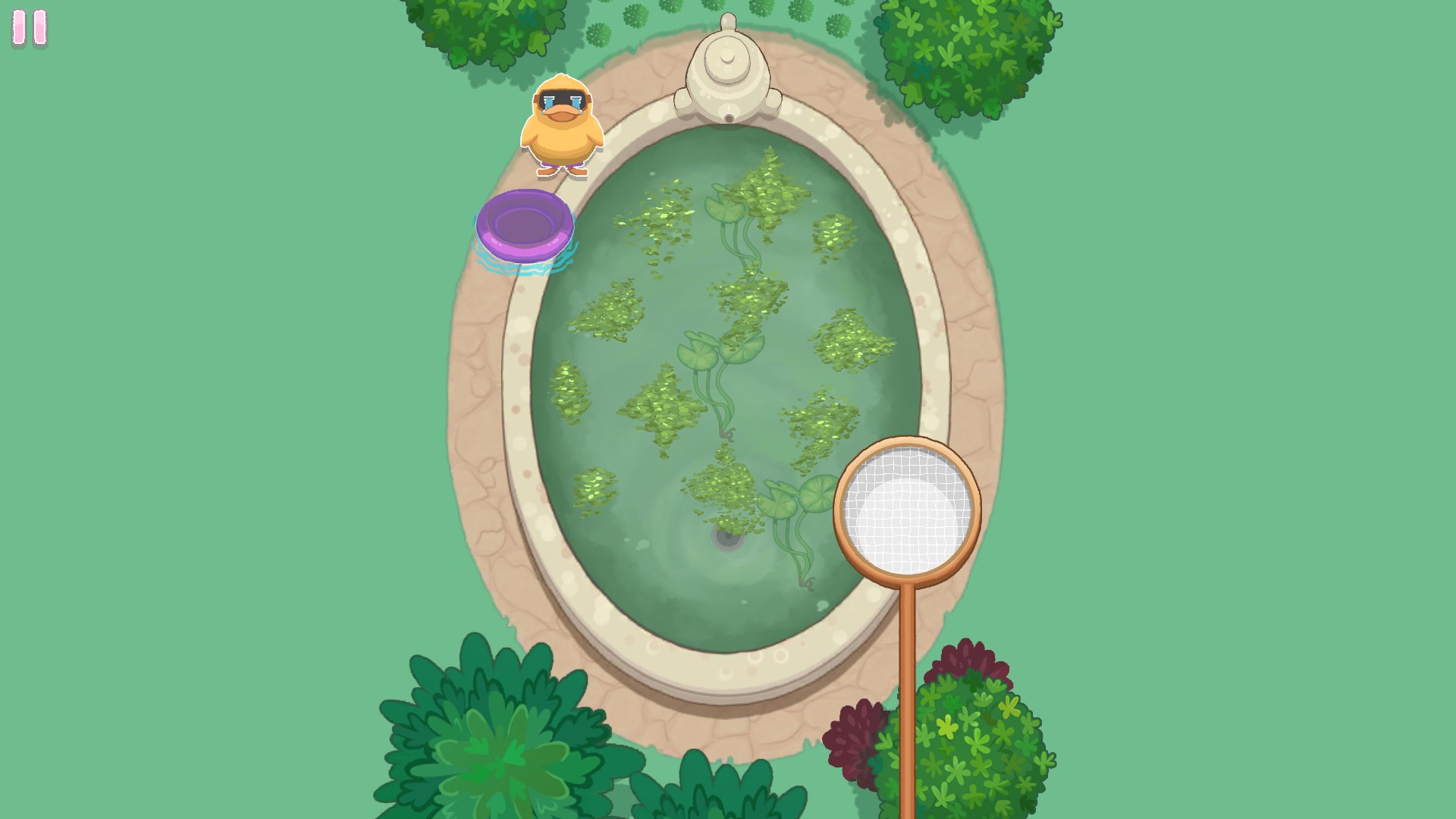
Pick your next puzzle
Choose a puzzle number and open the activity you want to play.
Extra timeFree
Add extra seconds to the countdown and keep working on your current puzzle.
Move an item to start the countdown, choose from 1 to 600 extra seconds and press Extra time.
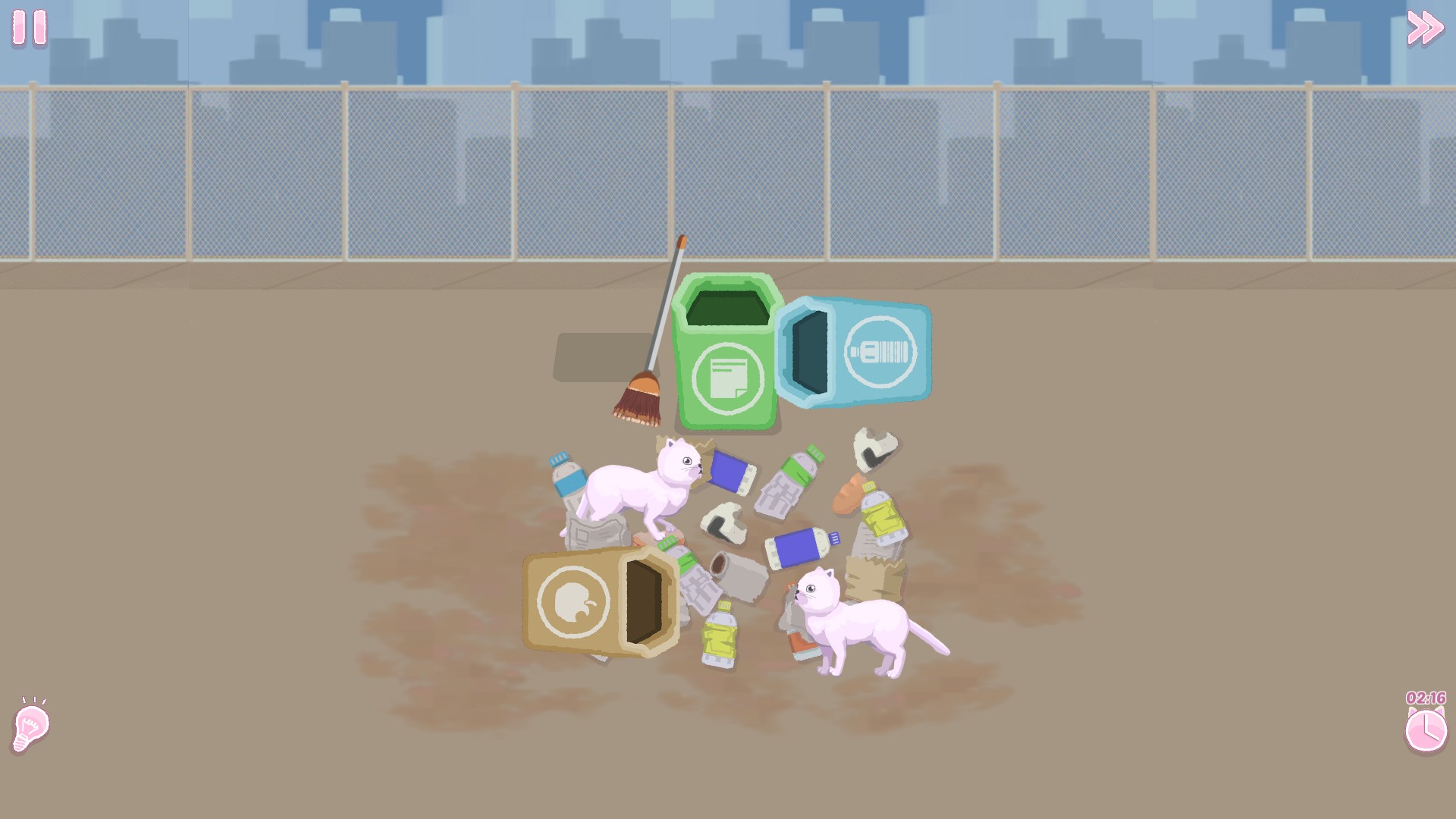
More time to get things tidy
Add extra seconds to your current puzzle and keep working on your tidy finish.
Finish puzzlePremium
Finish your current puzzle and continue from the results screen.
Use while playing a puzzle, then continue with the normal results buttons.
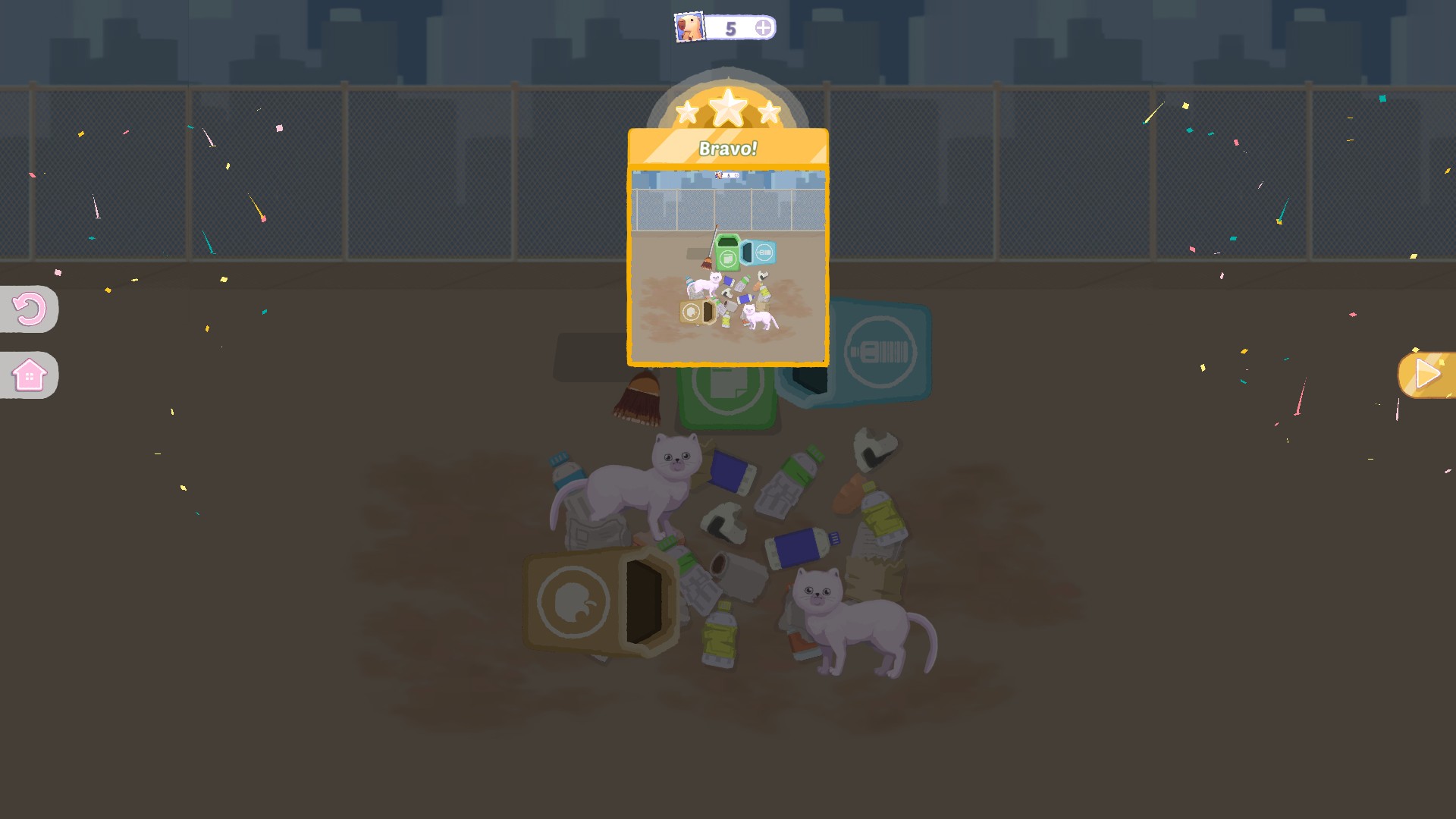
Ready for your next puzzle
Finish your current puzzle and continue from the results screen.
Pause timerPremium
Pause the countdown while you keep working on your current puzzle.
Turn on during an active puzzle with a countdown. Switch it off to resume the clock, and turn it off and on again to pause a new puzzle.
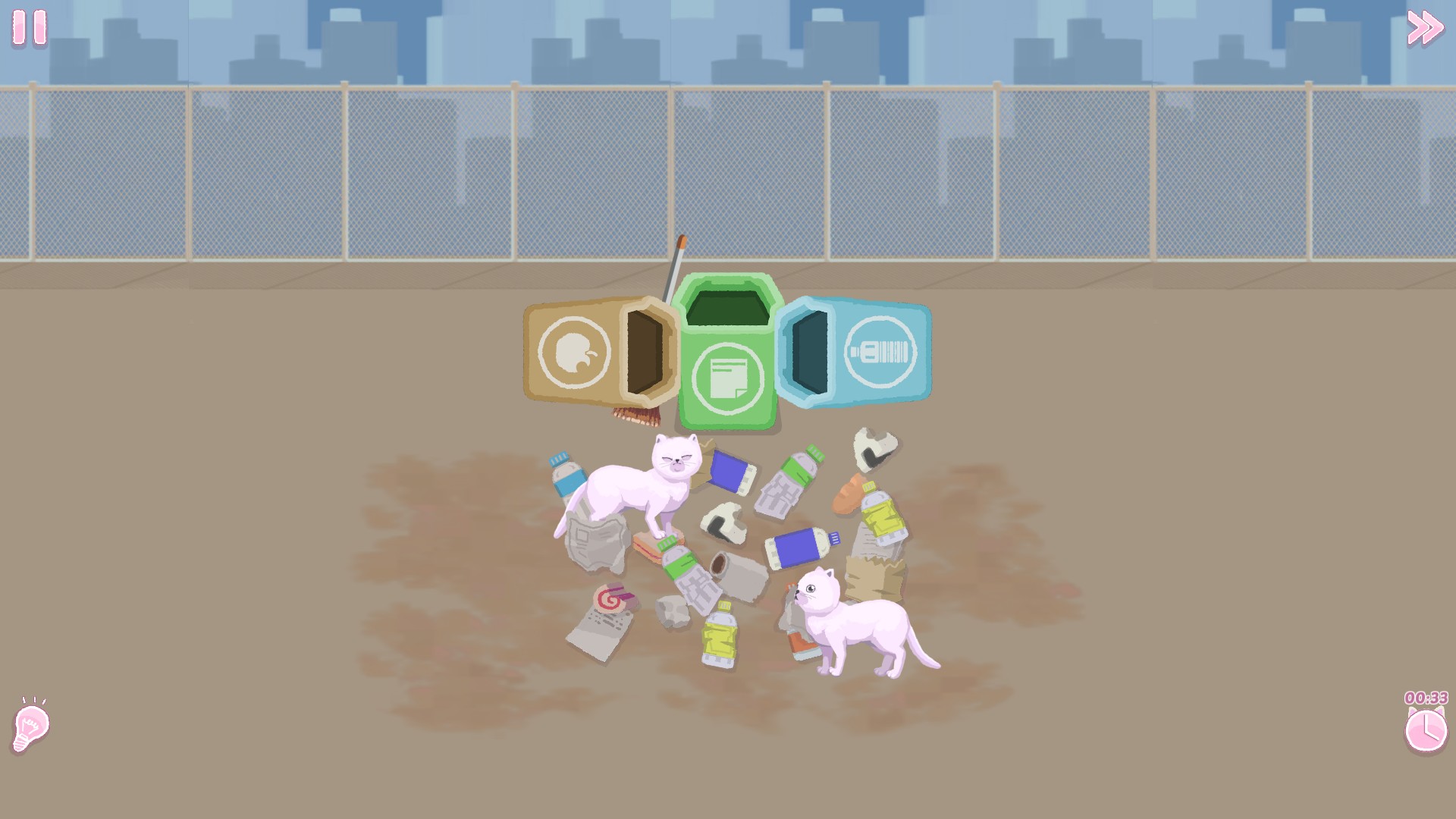
Take your time tidying up
Pause the countdown while you sort, clean and work through your current puzzle.
Questions about game actions
- Can I still move items while the timer is paused?
- Yes. Pause timer holds the countdown while you keep working on the puzzle. Switch it off whenever you want the clock to run again.
Using these features
Choose the feature in the Windows app after connecting your game. Check its requirements before making a change.
Setup for Perfect Tidy →