
Set up your next Gin Rummy match
Set coins for normal purchases, or open all five tables for your current visit and choose a local opponent from Tables.
Requires the Windows app and the Bytonian Mods browser extension for Chrome or Edge. Browser setup guide

Coins for the normal shop
Set your coin balance, apply the change and reopen the card-back or table menu. Make purchases using the game's usual buttons. Bought card backs stay owned after reload, but you may need to select your preferred design again in Shop.
Pick a table after applying
Unlock Tables opens all five choices for your current visit. Select an opponent from Tables to start a normal match. The table unlocks reset after a later reload, so apply again before choosing another match.
Apply between rounds
Applying restarts Gin Rummy. Make your changes before entering a match, then press Play and choose a table.
Available customisation options
CoinsFree
Choose your coin balance for table access and card backs.
Set a whole-number balance, apply, then open the normal table or card-back menu.
Applying restarts the game. Bought card backs remain owned after reload; select your preferred design again in Shop.
Unlock tablesPremium
Open all five local-opponent tables for your current visit.
Apply Unlock Tables, press Play and select the opponent you want from Tables.
Table unlocks reset after a later reload. Apply again before choosing your next match. Applying restarts the game.
Buy a card back with your chosen coin balance
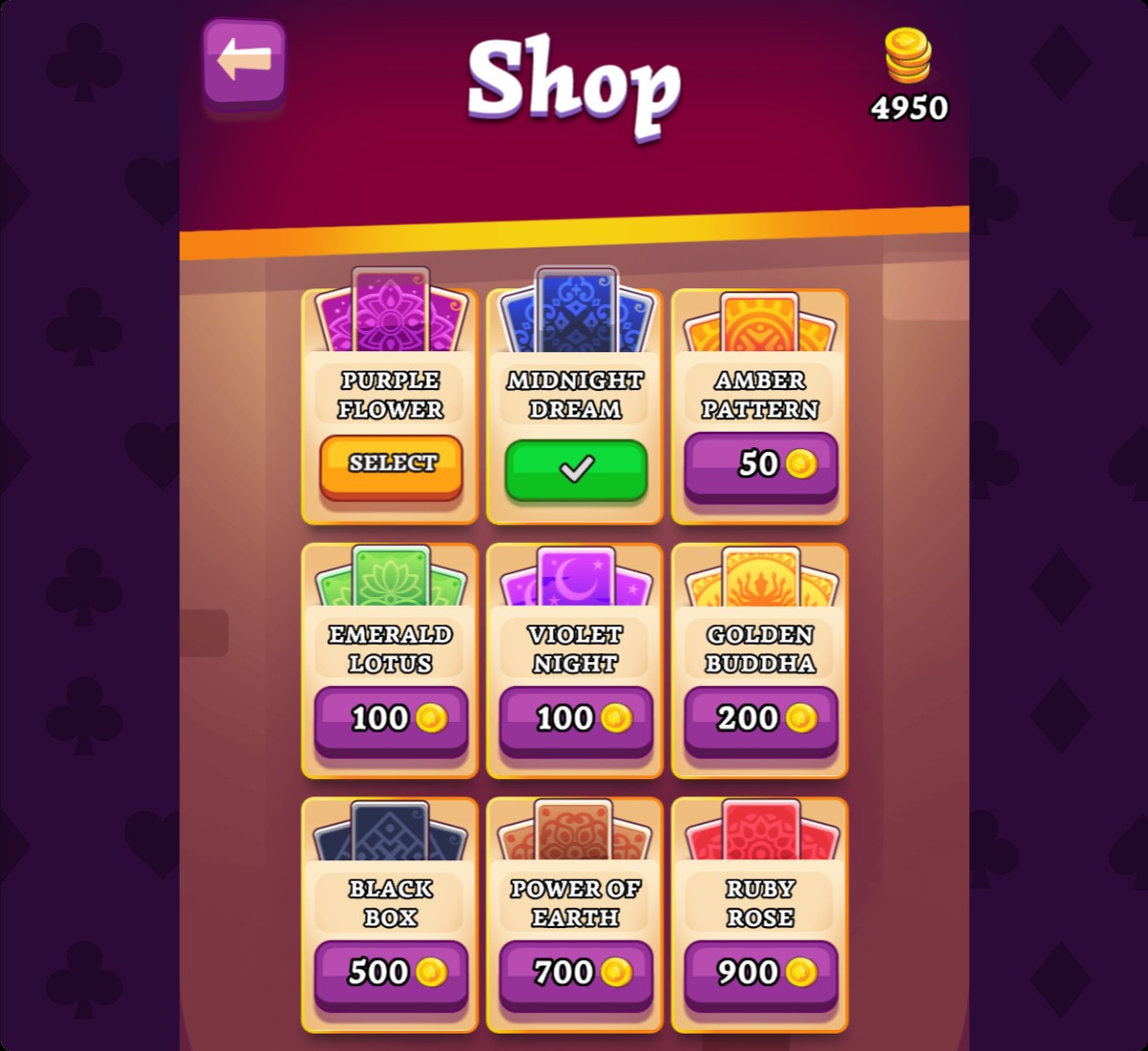
After setting 5,000 coins, a normal 50-coin Midnight Dream purchase leaves 4,950 and selects the blue card back in Shop.
Using these features
Connect your game, then open Customise in the Windows app. Choose an option, check its available values and follow its instructions. Each option lists its own requirements and limits.
Setup for Gin Rummy →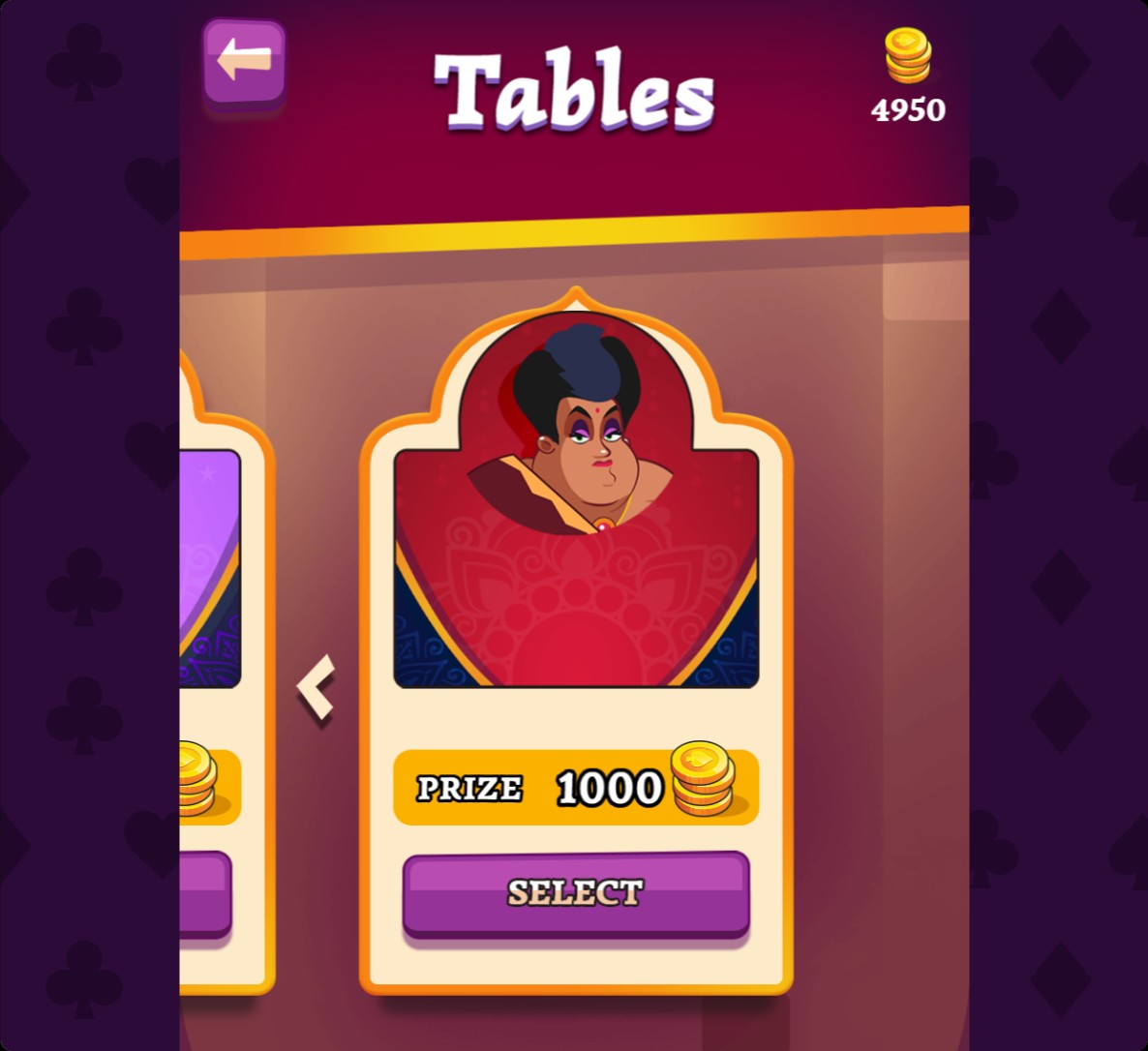
Choose the final Gin Rummy table
Unlock Tables makes Mala's table selectable while keeping the existing 4,950-coin balance.