

New looks and challenge progress
Give your basketball a new style or fill out more of your challenge collection. These two controls keep cosmetic choices and challenge progress separate, so you can use the one that suits your next run.
Choose a new basketball style
Use Unlock all skins, then open Skins and select your favourite look. If the collection total has not caught up, use the available tiles to choose a style.
Move your challenge collection forward
Use Advance challenge progress, then open Challenges to see the updated collection. You can still enter a course from its numbered tile and Start button; finish any remaining challenges through normal play.
Available unlocks
Advance challenge progressPremium
Advance your challenge collection and revisit its courses at your own pace.
Apply the control, then open Challenges to view your progress.
Before you use it: Finish any remaining challenges through normal play.
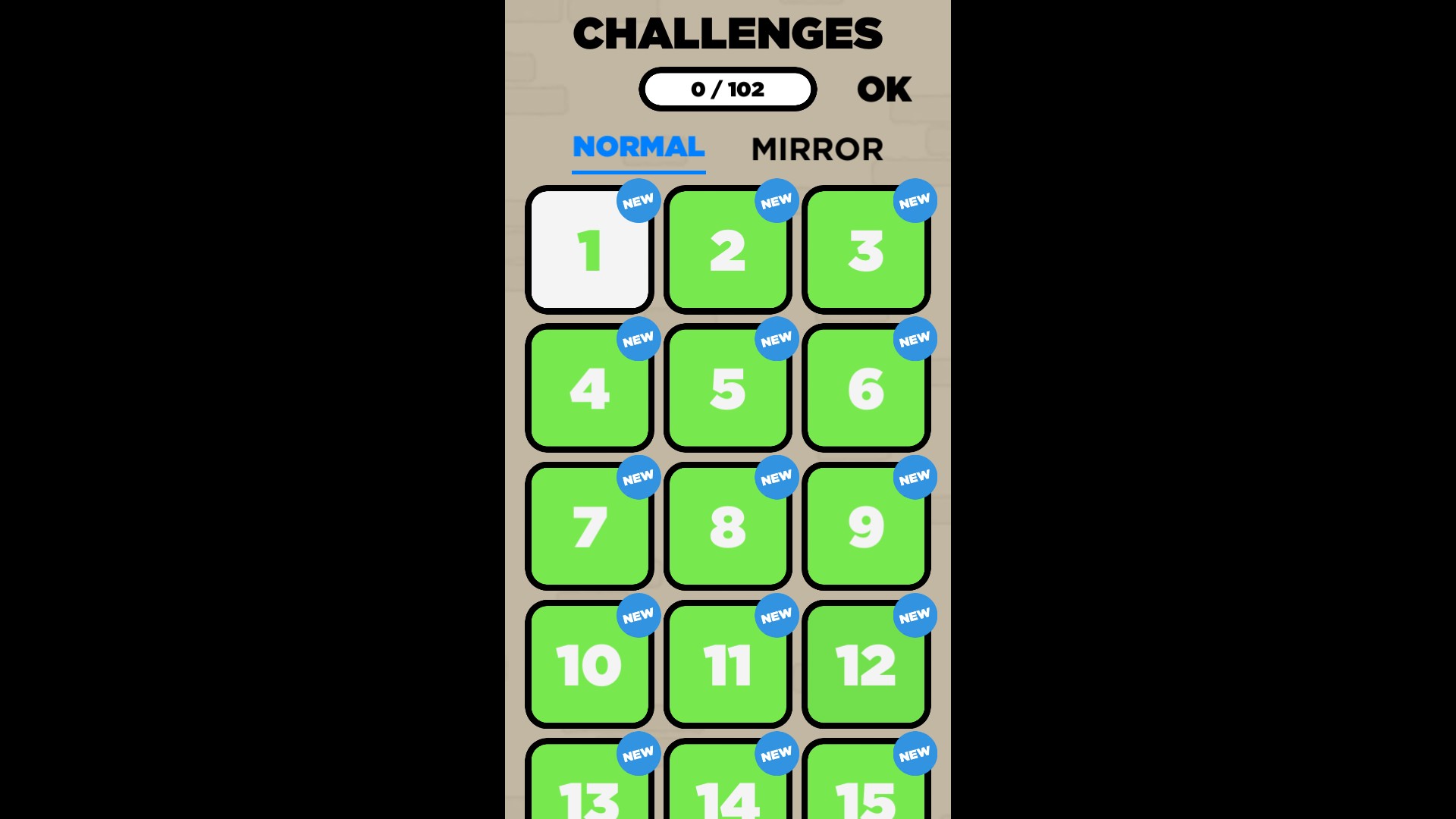
Choose your next challenge
Open the challenge collection and pick a new test of your basketball timing.
Unlock all skinsPremium
Unlock the skin collection and give your next run a fresh look.
Apply the control, then open Skins and select a style.
Before you use it: If the collection total still shows the old value, choose your look from the available tiles.
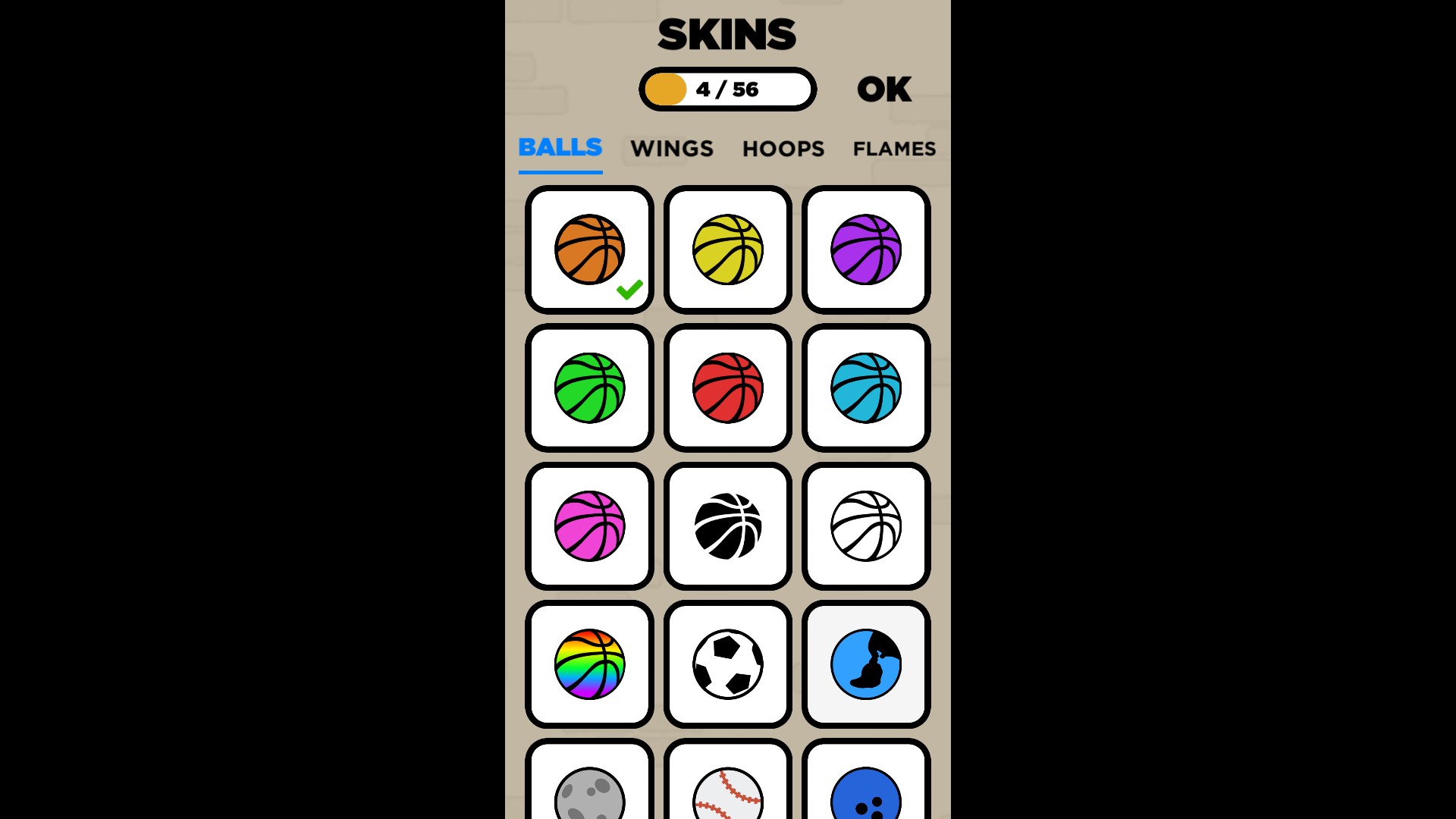
Give your basketball a fresh look
Browse a colourful collection of unlocked ball styles and choose a new favourite for your next run.
More ways to customise Flappy Dunk
- Flappy Dunk presentation modifiers
Black and yellow theme.
Using these features
Choose the feature in the Windows app after connecting your game. Check its requirements before making a change.
Setup for Flappy Dunk →