
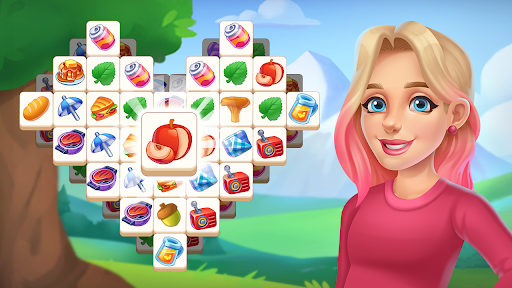
Choose your booster item stocks
Set a separate quantity for Undo, Shuffle and Match items, with a range of 0 to 1,000 for each stock.
Requires the Windows app and the Bytonian Mods browser extension for Chrome or Edge. Browser setup guide
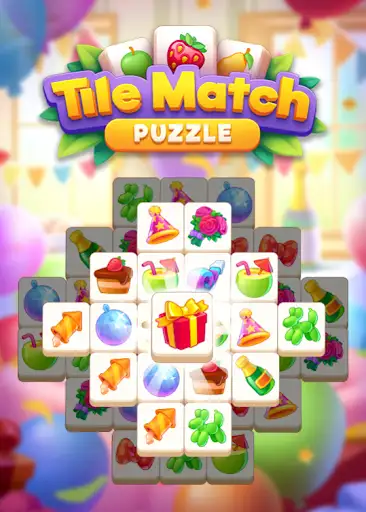
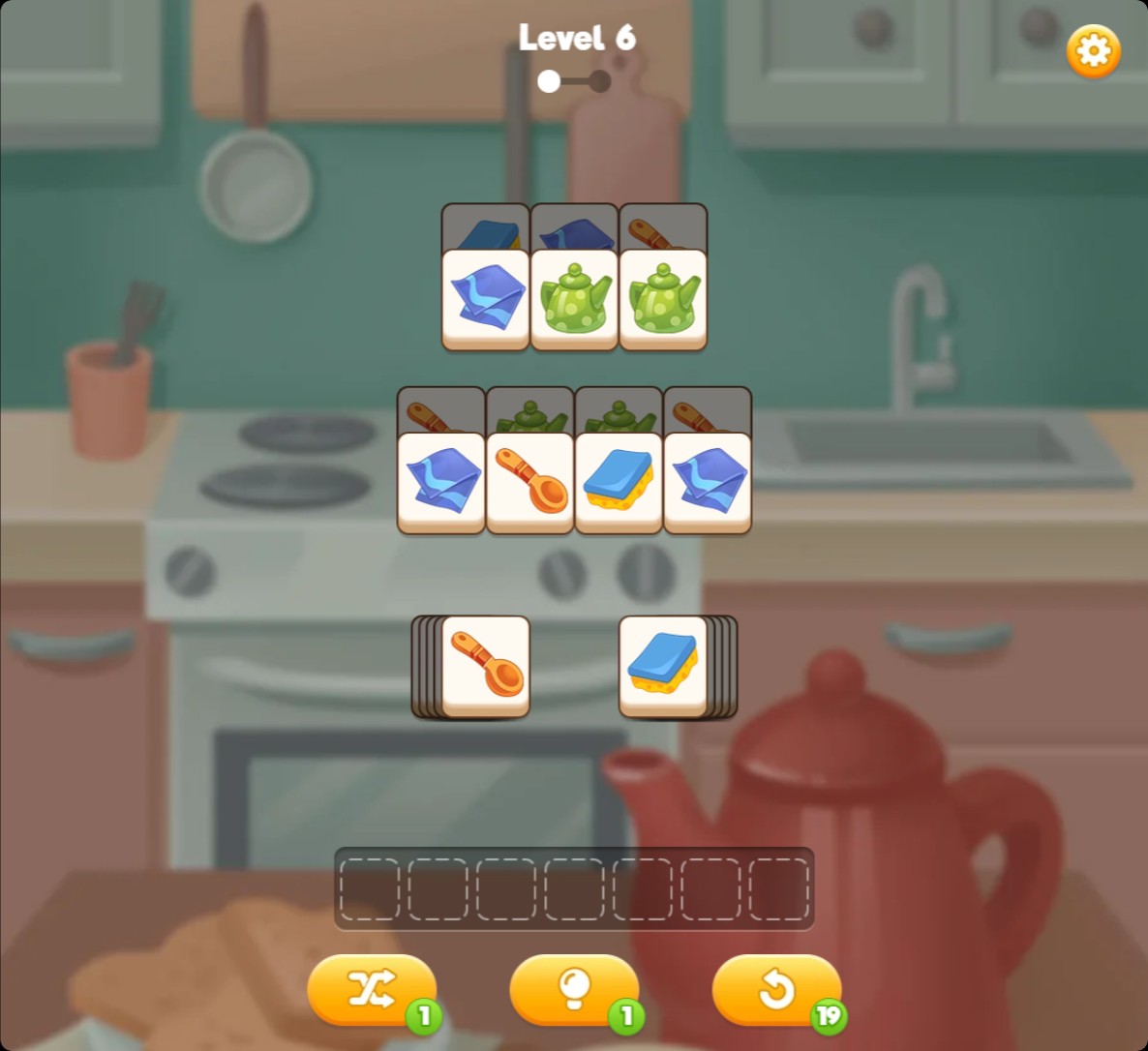
Undo a tile selection
Return a selected tile to the board with Undo items.
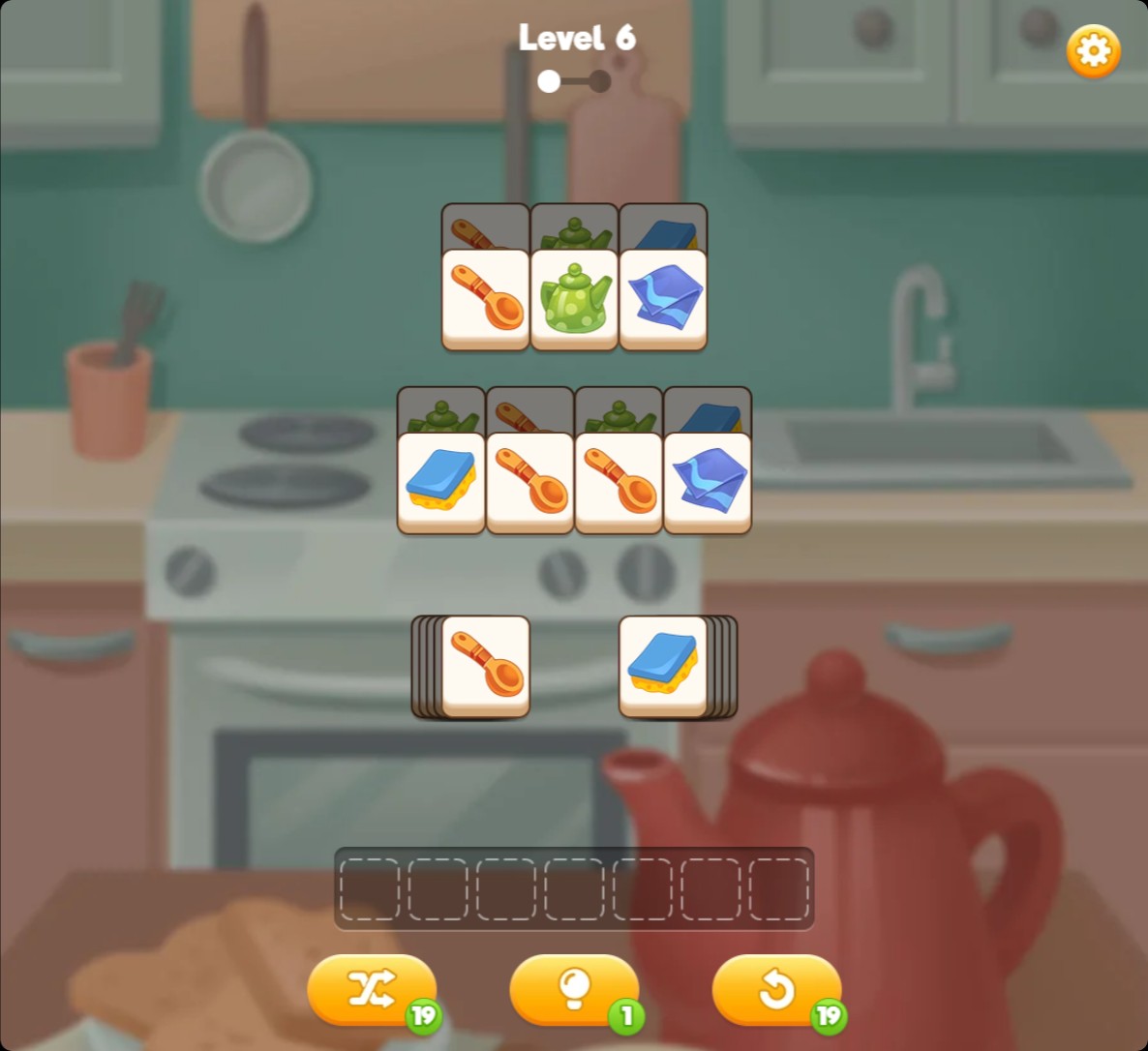
Rearrange the tile board
Use Shuffle items for a different tile arrangement.
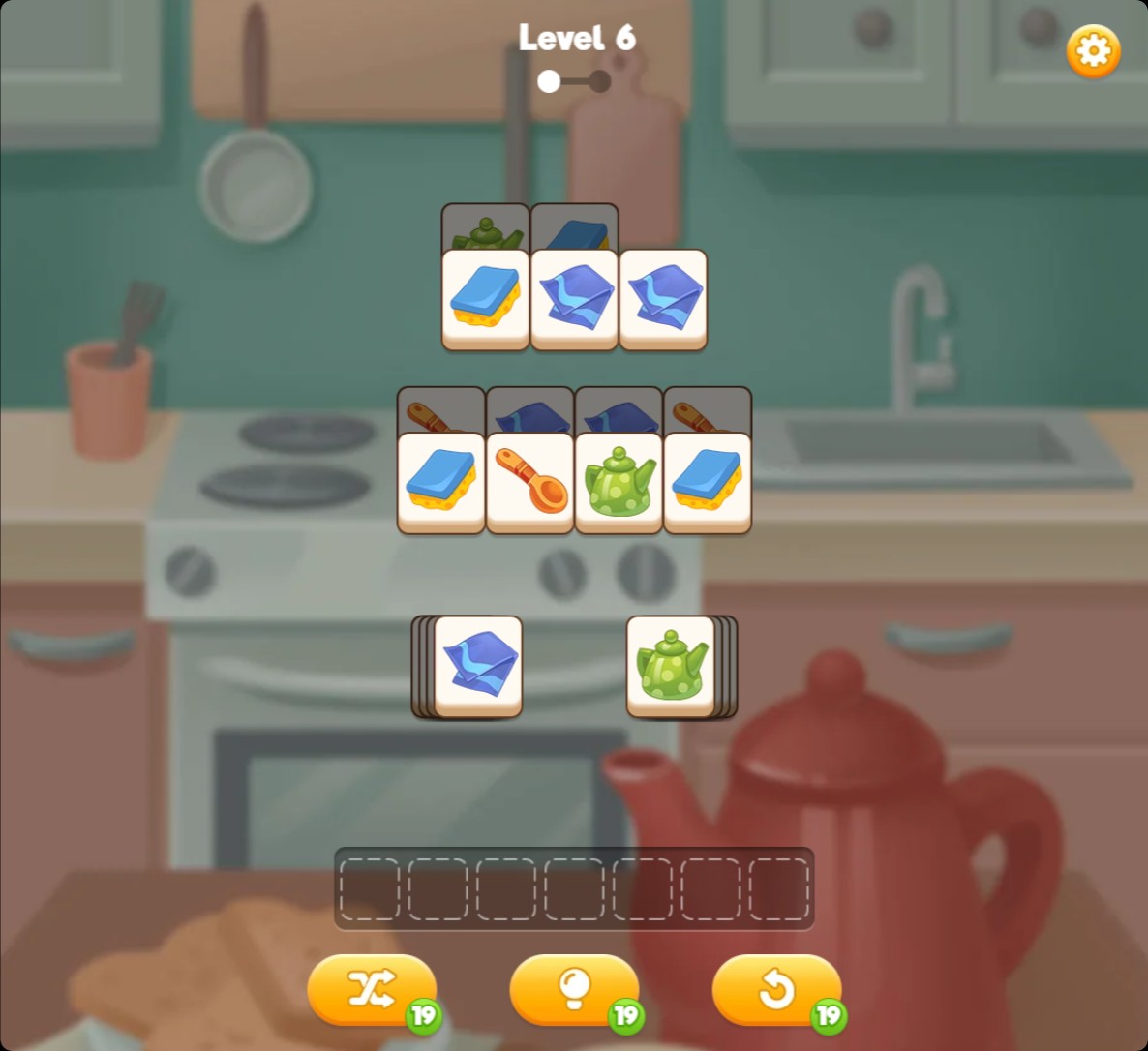
Complete a matching group
Use a Match item to help clear matching tiles from the board and tray.
Undo Items
Use the curved arrow after selecting a tile to return it from your tray to the board. Each use consumes one Undo item.
Shuffle Items
Use the shuffle arrows to rearrange the board. Each shuffle consumes one item and leaves you to continue matching tiles.
Match Items
Use the light bulb for help completing a matching group. Each use consumes one Match item.
Getting started
Reach level 6 through normal play to reveal the booster controls. Choose the item quantities you want, apply them and enter your puzzle.
Available customisation options
Undo ItemsFree
Set your Undo item stock so you can return selected tiles to the board.
Choose a quantity, apply it, then use the curved arrow during a puzzle after selecting a tile.
Undo needs a tile in the tray. Booster controls appear at level 6.
Shuffle ItemsFree
Set your Shuffle item stock for more chances to rearrange the board.
Choose a quantity, apply it, then use the shuffle arrows during a puzzle.
Booster controls appear at level 6. Shuffling changes the arrangement and does not complete the puzzle.
Match ItemsFree
Set your Match item stock for more matching-tile assistance.
Choose a quantity, apply it, then use the light bulb during a puzzle.
Booster controls appear at level 6. Match helps with a group rather than finishing the entire puzzle.
Questions about customisation options
- Does changing stock activate a booster immediately?
- No. Use the corresponding button during a puzzle when you want its effect.
- Can I choose a different quantity for each item?
- Yes. Undo, Shuffle and Match each have their own quantity control.
Using these features
Connect your game, then open Customise in the Windows app. Choose an option, check its available values and follow its instructions. Each option lists its own requirements and limits.
Setup for Tile Match Puzzle →