
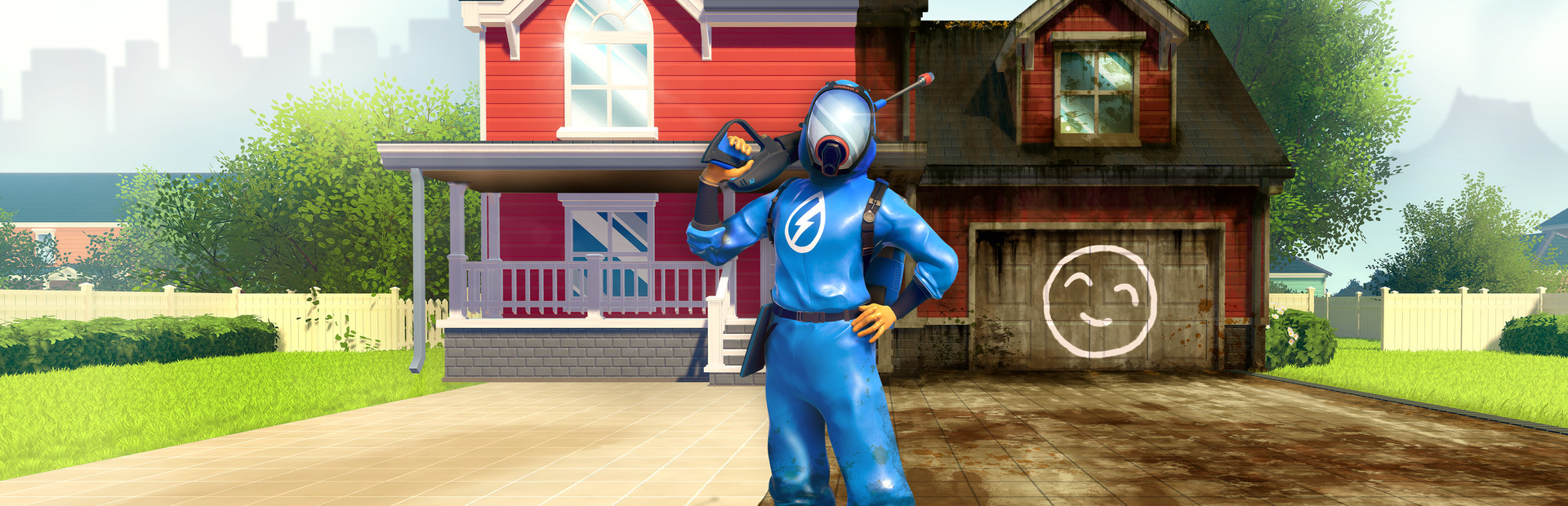
Fly around the cleaning job
Get an elevated view of the work site and move through scenery with Fly. Choose the speeds and keys that suit your way of getting around.
Choose your flight controls
Select Fly in Movement, then turn Movement on. Use W, A, S and D to move, Space to rise and Ctrl to descend. Hold Shift for the faster flight speed.
Customize these keys and both speeds in the Movement controls. V toggles Movement by default; change or remove that shortcut in your keybinds.
Return to normal walking
Switch Movement off in open space above safe ground to restore normal movement and collisions. Movement releases control when the game opens the tablet or blocks your walking input.
Stay close to the job's rendered area. Scenery can disappear beyond the level, including above its roof. Challenge mode keeps normal movement.
Available ability modifiers
MovementPremium
Fly and hover around the work site with adjustable speeds and movement keys.
Select Fly in Movement. Use W/A/S/D, Space to rise, Ctrl to descend and Shift for the faster speed. Customize the controls in Movement and the V toggle shortcut in your keybinds.
Switch off in open space above safe ground and stay within the rendered job area. Scenery can disappear outside the level. Challenge mode keeps normal movement.
Supported movement styles: Fly
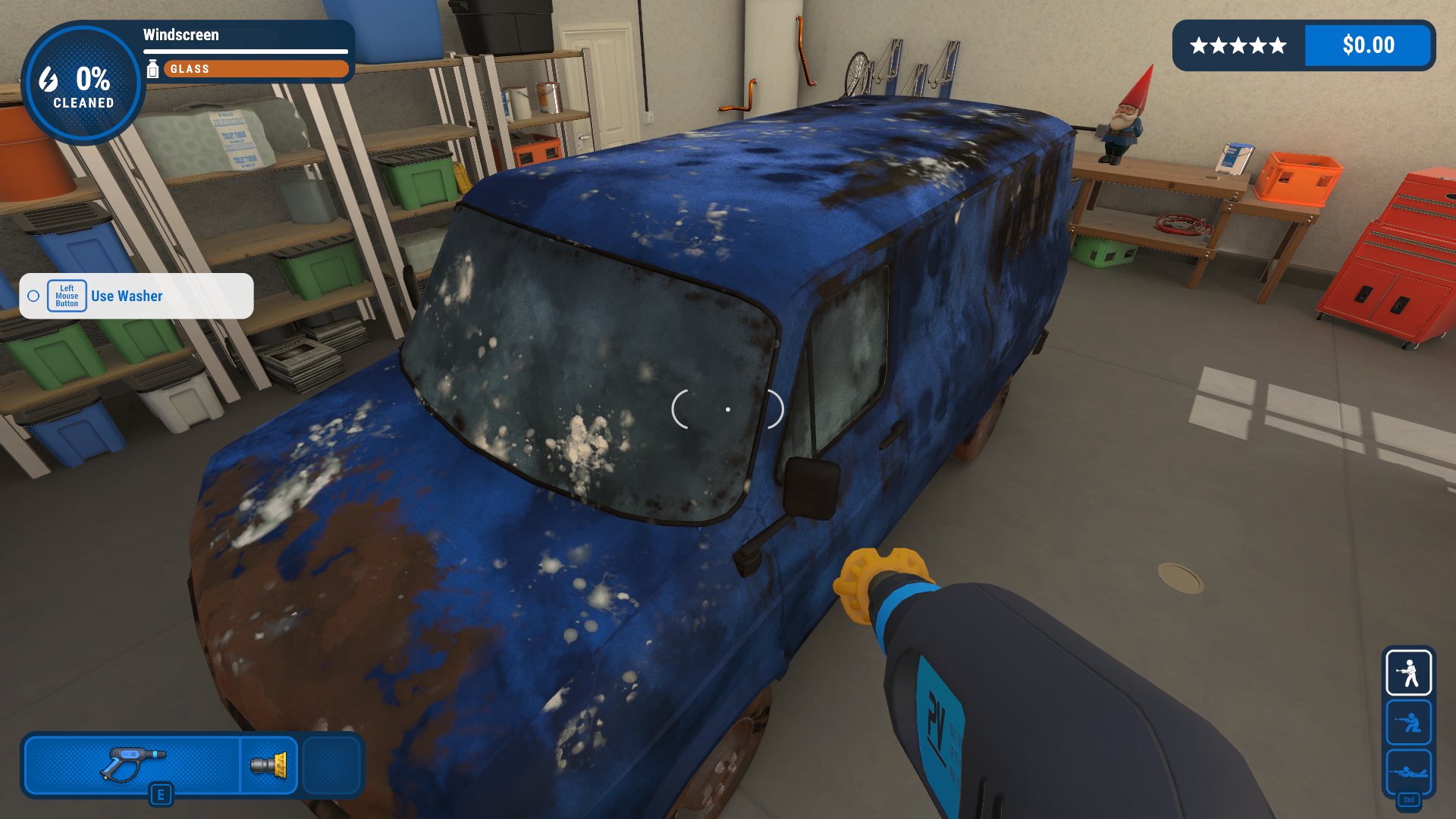
Hover above the van
Select Fly in Movement to hover over the job and look across the van roof. Adjust both flight speeds and the movement keys in the Movement controls.
Questions about ability modifiers
- Can Fly pass through walls?
- Yes. Fly can pass through work-site scenery. Move back into open space before turning Movement off.
- Does switching Movement off return me to the ground?
- Normal gravity and collisions return. If you are hovering, you fall onto the surface below you.
Using these features
Choose the feature in the Windows app after connecting your game. Check its requirements before making a change.
Setup for PowerWash Simulator →