
Choose your balance, order and room upgrades
Use Coins for ordinary shop purchases, Order Number to choose a place in the decorating sequence, and the three room controls to adjust its appearance.
Requires the Windows app and the Bytonian Mods browser extension for Chrome or Edge. Browser setup guide

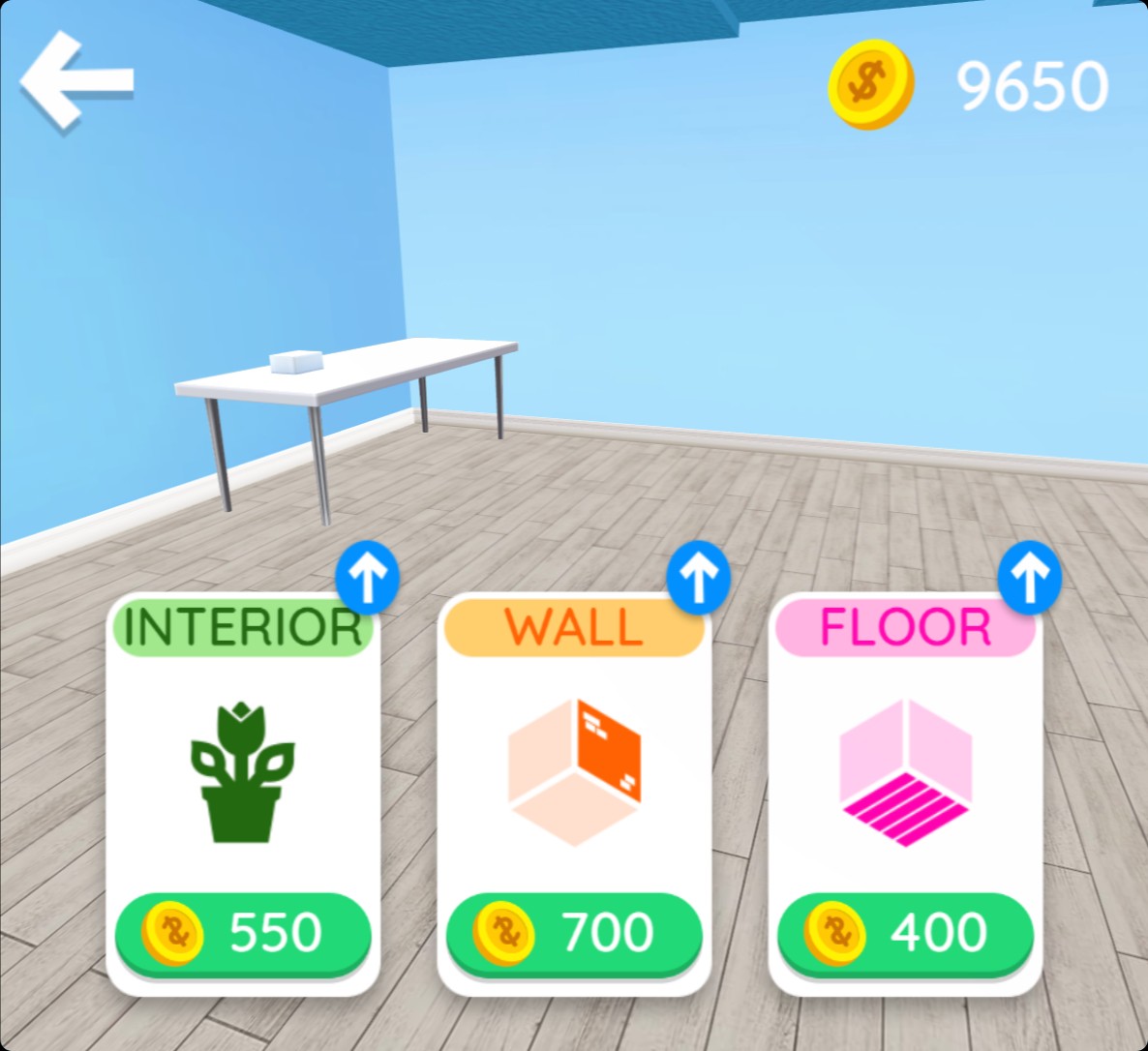
Coins after a wall upgrade
A normal 350-coin wall purchase leaves 9,650 coins from the 10,000 balance and turns the room's walls blue.
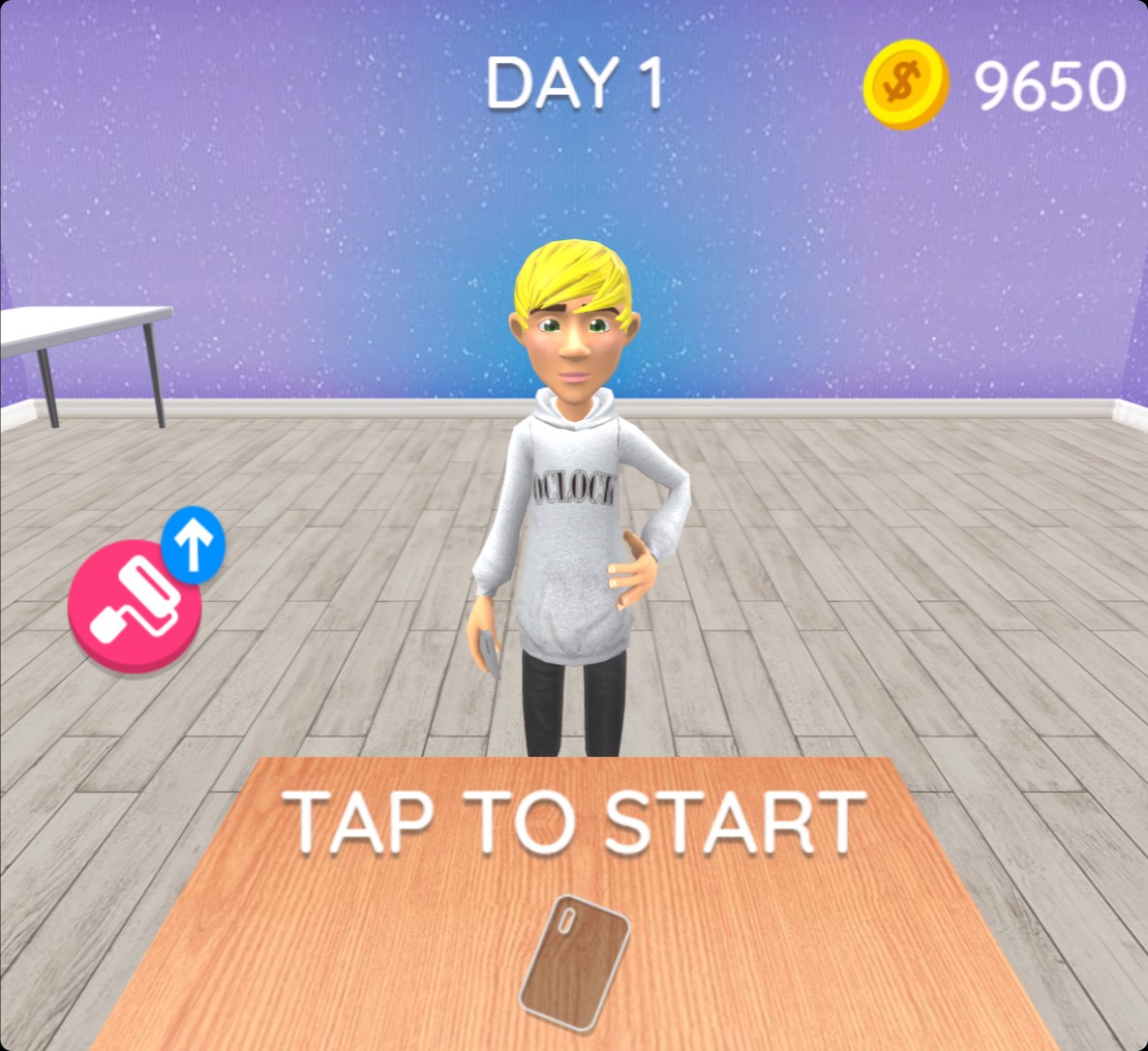
A new wall finish
Wall Upgrade changes the room from plain blue walls to a purple-and-blue patterned finish.
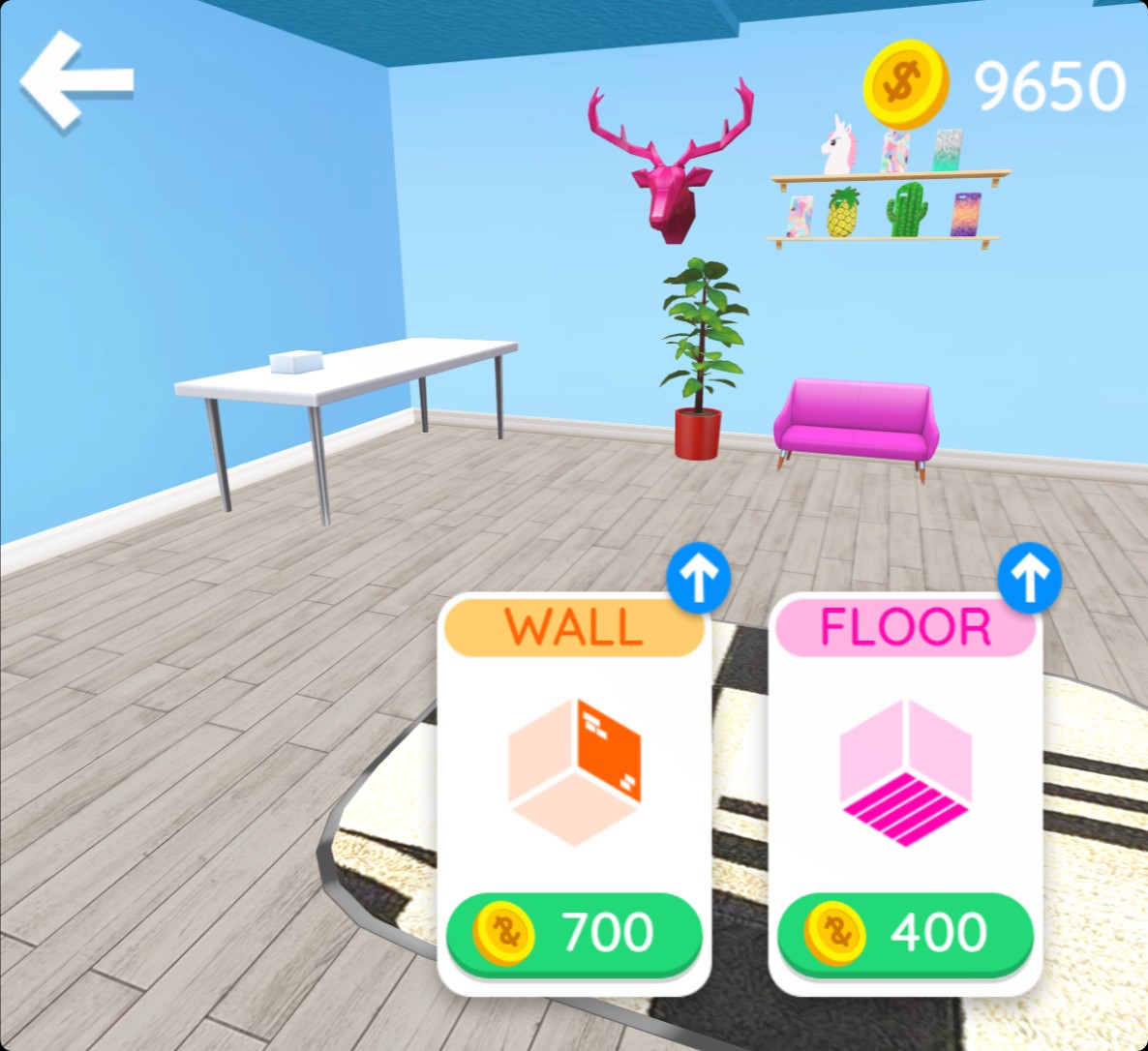
A fully furnished phone shop
Interior Upgrade adds the pink sofa, plant, rug, wall ornament and display shelves to your shop.
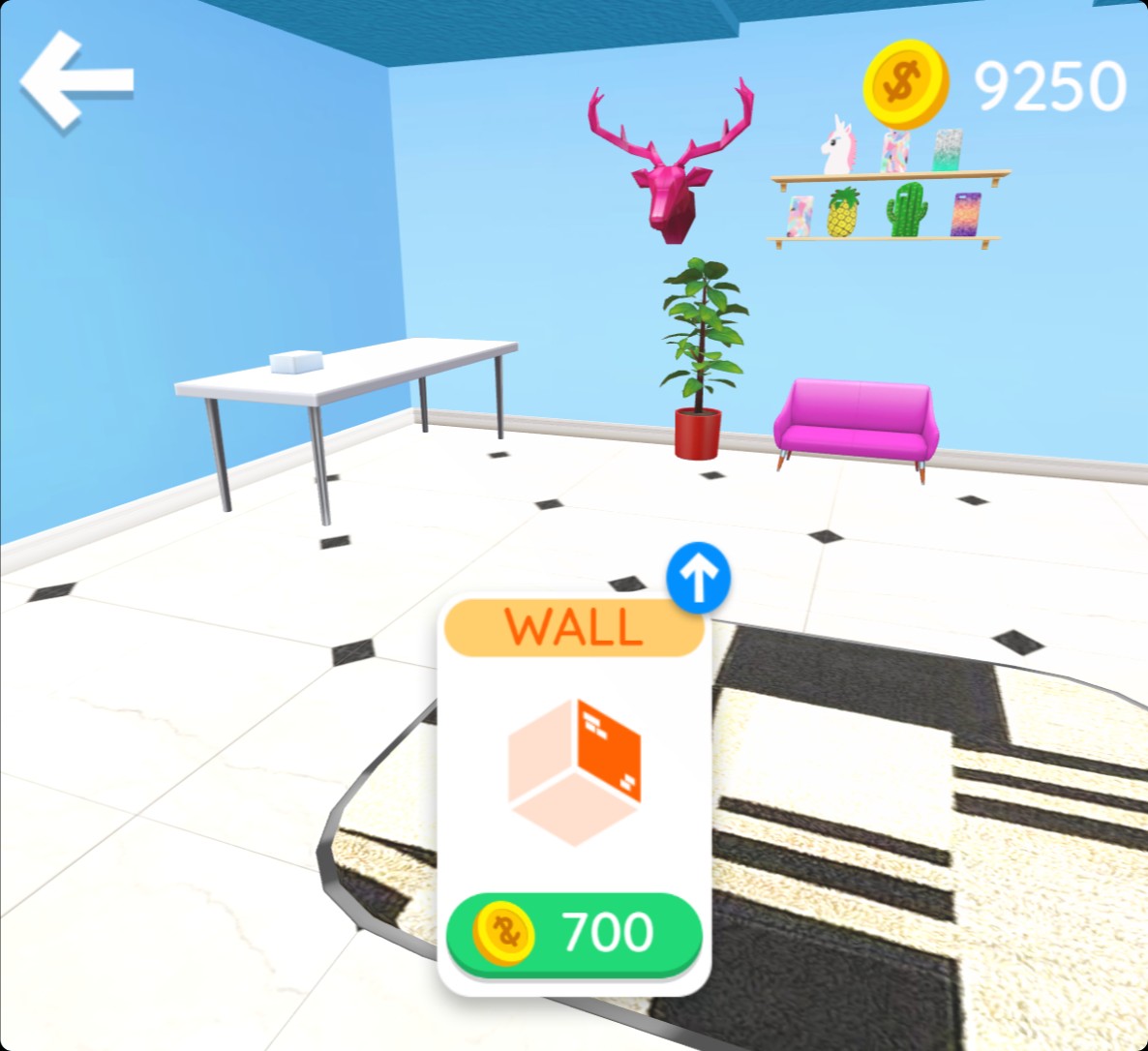
A new tiled floor for the shop
Floor Upgrade changes the room's flooring. The highest stage gives it white tiles with black diamond accents.
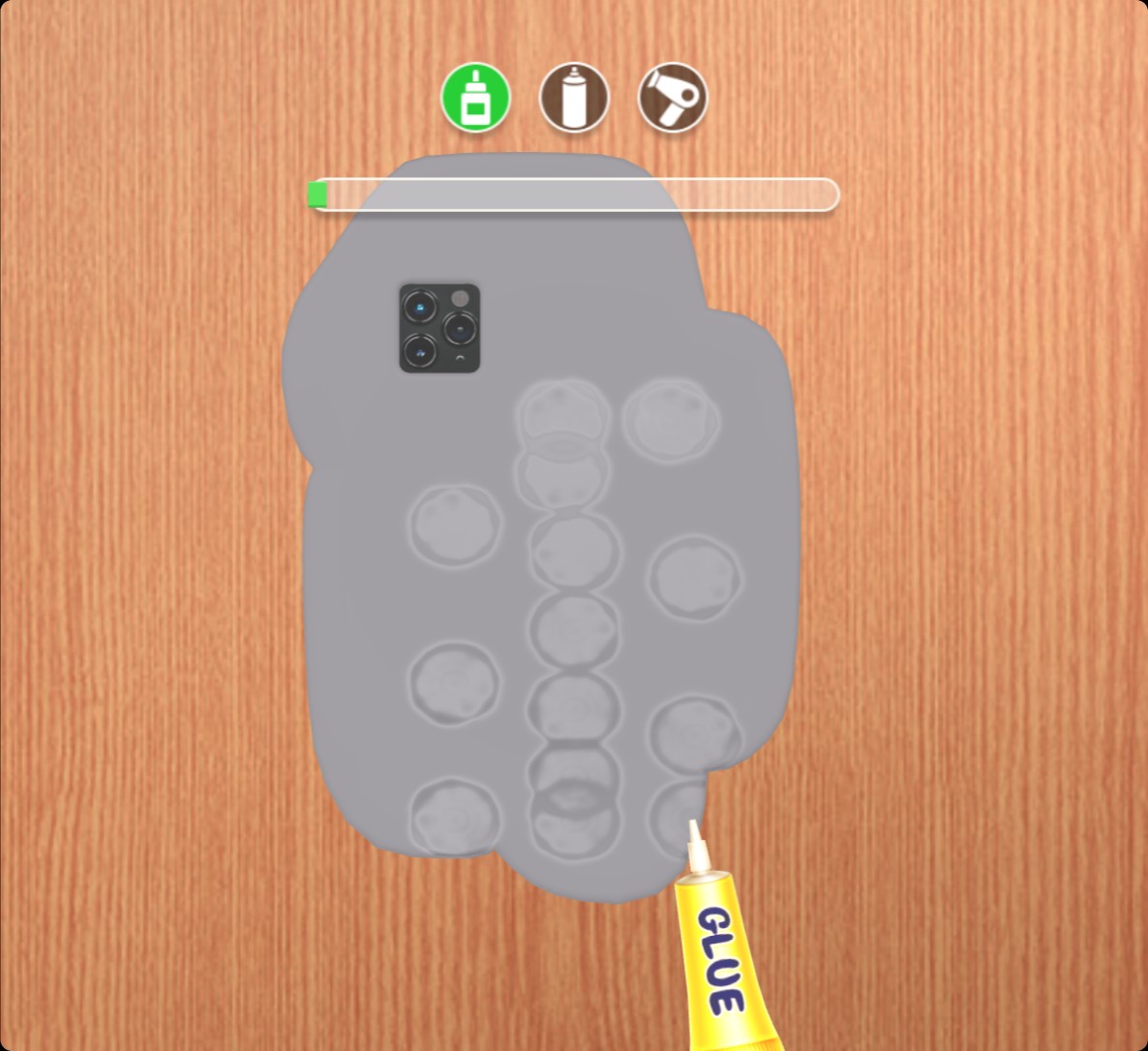
Choose a different phone case
Order Number selects the phone you decorate next. This order opens a cloud-shaped case, with normal glue work underway.
Coins and the next phone
Set your coin balance, then use the room's normal upgrade shop. Order Number chooses which phone case opens when you start an order. Case styles and decoration stages repeat as the order sequence advances.
Walls, furnishings and floor
Wall Upgrade and Floor Upgrade choose those room finishes. Interior Upgrade adds furnishings through its upgrade stages, with shelves included at the highest stage.
After applying room changes, finish an order or make an ordinary room purchase so the game saves the settings.
Available customisation options
CoinsPremium
Set the coins available for normal room-upgrade purchases.
Choose a balance, apply it, then open the upgrade shop to spend coins on your room.
Order numberPremium
Choose which phone case to decorate next from the order sequence.
Apply an order number, then start the order from the room. Finish an order or make an ordinary room purchase to save your selection before leaving. Case styles and decoration stages repeat as the sequence advances.
Wall upgradeFree
Choose the wall upgrade level to change the room's wall finish.
Apply a level and return to the room to see its wall finish. Finish an order or make an ordinary room purchase to save the applied room settings.
Interior upgradePremium
Choose the interior upgrade level to add room furnishings, including shelves at the highest level.
Apply a level and inspect the furnished room around the workbench. Finish an order or make an ordinary room purchase to save the applied room settings.
Floor upgradePremium
Choose the floor upgrade level to change the room's flooring.
Apply a level and return to the room to see its floor finish. Finish an order or make an ordinary room purchase to save the applied room settings.
Using these features
Connect your game, then open Customise in the Windows app. Choose an option, check its available values and follow its instructions. Each option lists its own requirements and limits.
Setup for Phone Case DIY →