
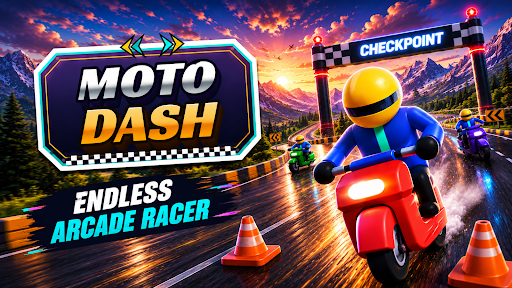
Customise
3 optionsSet your balance, starting nitro stock and graphics preset.
View customisation options →Prepare your next ride with a coin balance for garage purchases, Nitro Starts for a full nitro bar at the start of a run, and your preferred graphics detail.
Requires the Windows app and the Bytonian Mods browser extension for Chrome or Edge. Browser setup guide

Start with free mods
Download Bytonian Mods for Windows and try these free features. Choose one to see how it works and any requirements.
Choose your coin balance for garage purchases.
Set the balance, apply it and open the garage to buy an upgrade.
Choose Automatic, High, Medium or Low graphics detail.
Apply your preset, start a run and open the pause menu to check the quality setting.
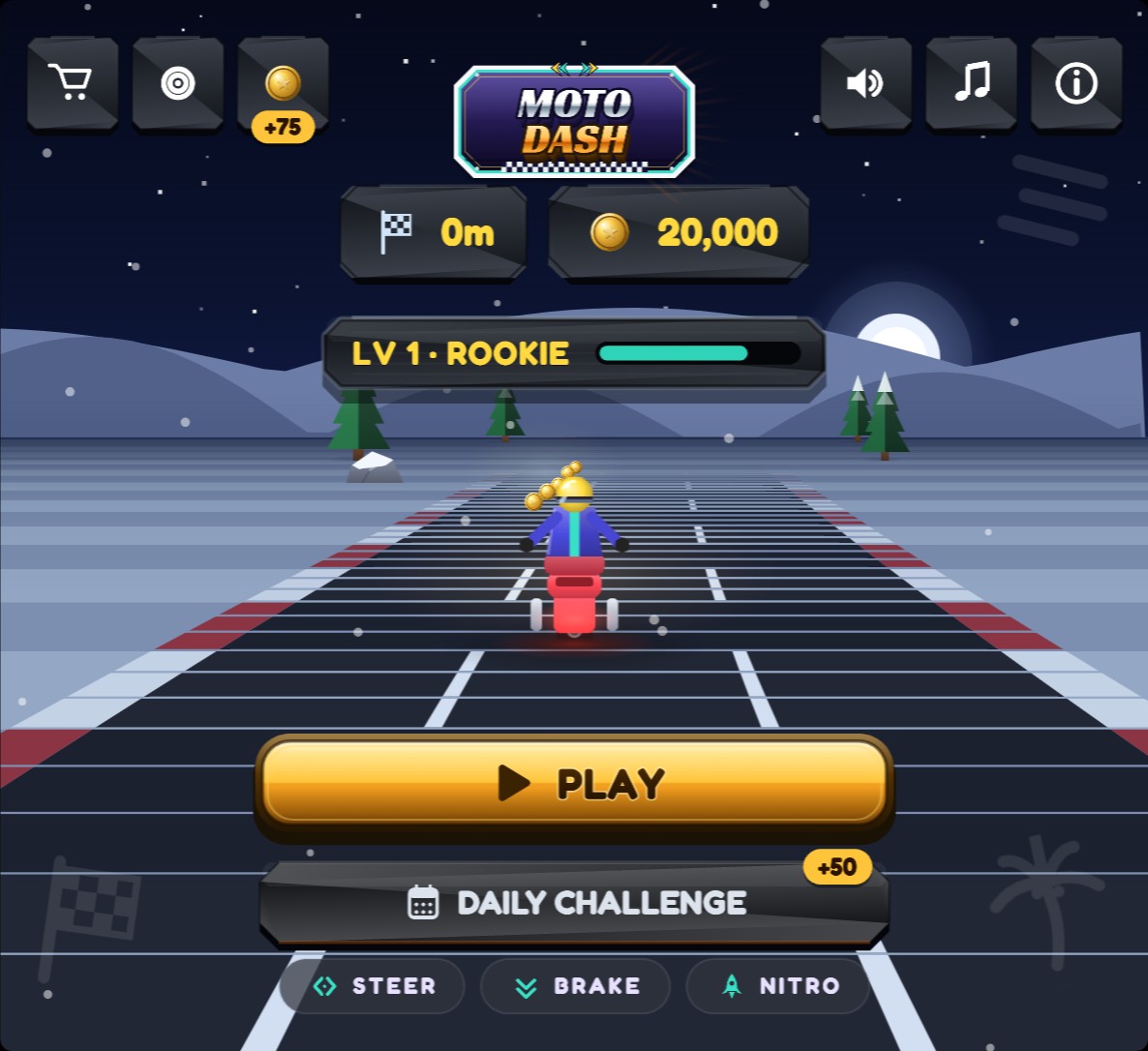
Ready for the garage
Choose your coin balance before buying upgrades through the garage.
Spend coins on the garage's upgrades at their listed prices. Nitro Starts are a separate stock item: one is used when you start a run. Choose your stock before heading back onto the road.
Choose Automatic, High, Medium or Low graphics. Automatic lets the game adjust its detail, while the other presets let you choose the level yourself.
Set your balance, starting nitro stock and graphics preset.
View customisation options →Download the Windows app and follow the setup prompts.
Set up the browser extension in Chrome or Edge, then open the supported YouTube Playable. Follow the connection guide if the game is already running.
Open Customise in Bytonian Mods, choose an option and follow its instructions. Check the available values and any limits before making your change.