
Choose your habitat settings
Choose daylight or night for your next view. The habitat's radioactive mode has a separate switch, so you can set the two independently.
Requires the Windows app and the Bytonian Mods browser extension for Chrome or Edge. Browser setup guide

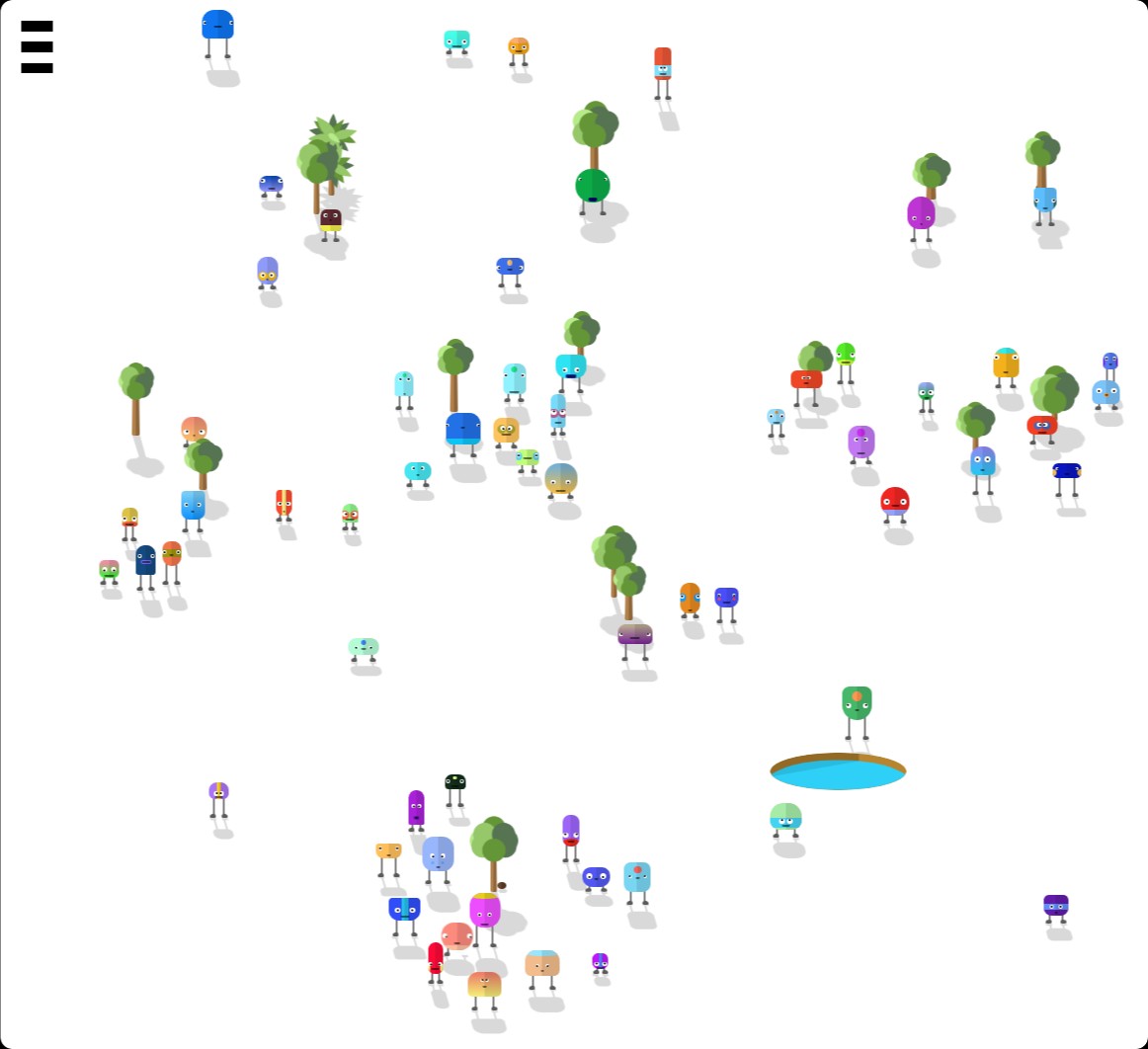
Choose daylight or night
Turn Night mode off for a bright daytime view of your habitat.
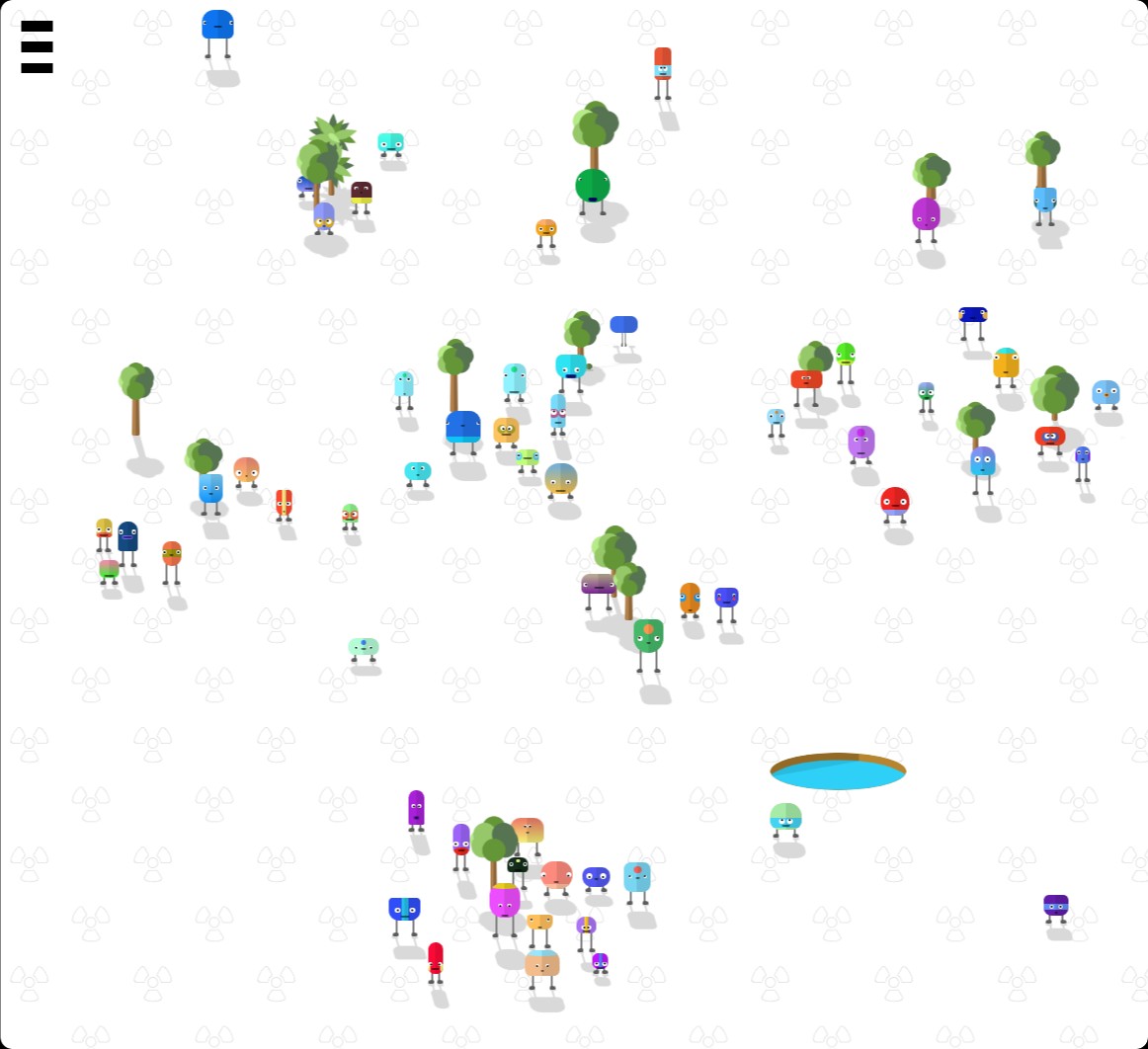
Explore radioactive mode
Enable the game's radioactive mode for your habitat.
Daylight or night
Enable Night mode for a dark color scheme, or disable it to return to the bright daylight view.
Radioactive habitat
Enable Radioactive mode to use the game's normal mutagen setting and radiation-themed background. Disable it for the normal habitat mode. This changes the mode rather than choosing a specific creature trait.
Available customisation options
Night modeFree
Choose a dark night scene or a bright daylight habitat.
Enable Night mode for a dark background, or disable it for daylight, then apply with the game open.
Radioactive modePremium
Choose whether your habitat uses the game's radioactive mode.
Enable or disable Radioactive mode, then apply with the game open.
This selects the normal game mode and does not choose specific offspring traits.
Questions about customisation options
- Can I combine night and radioactive mode?
- Yes. Night appearance and radioactive mode are separate settings.
- Do I need to edit creature data?
- No. Use the two mode controls to choose your habitat settings.
Using these features
Connect your game, then open Customise in the Windows app. Choose an option, check its available values and follow its instructions. Each option lists its own requirements and limits.
Setup for Lifeplaysim – A Simulation of Evolution and Life →